How to screen capture on a Lenovo laptop
Press Windows + PrtSc to save the whole screen to Pictures › Screenshots, or Windows + Shift + S to drag over just the part you want. On a ThinkPad, PrtSc is in the bottom row between the right Alt and Ctrl keys; on IdeaPad and Legion laptops it is at the right end of the top row.
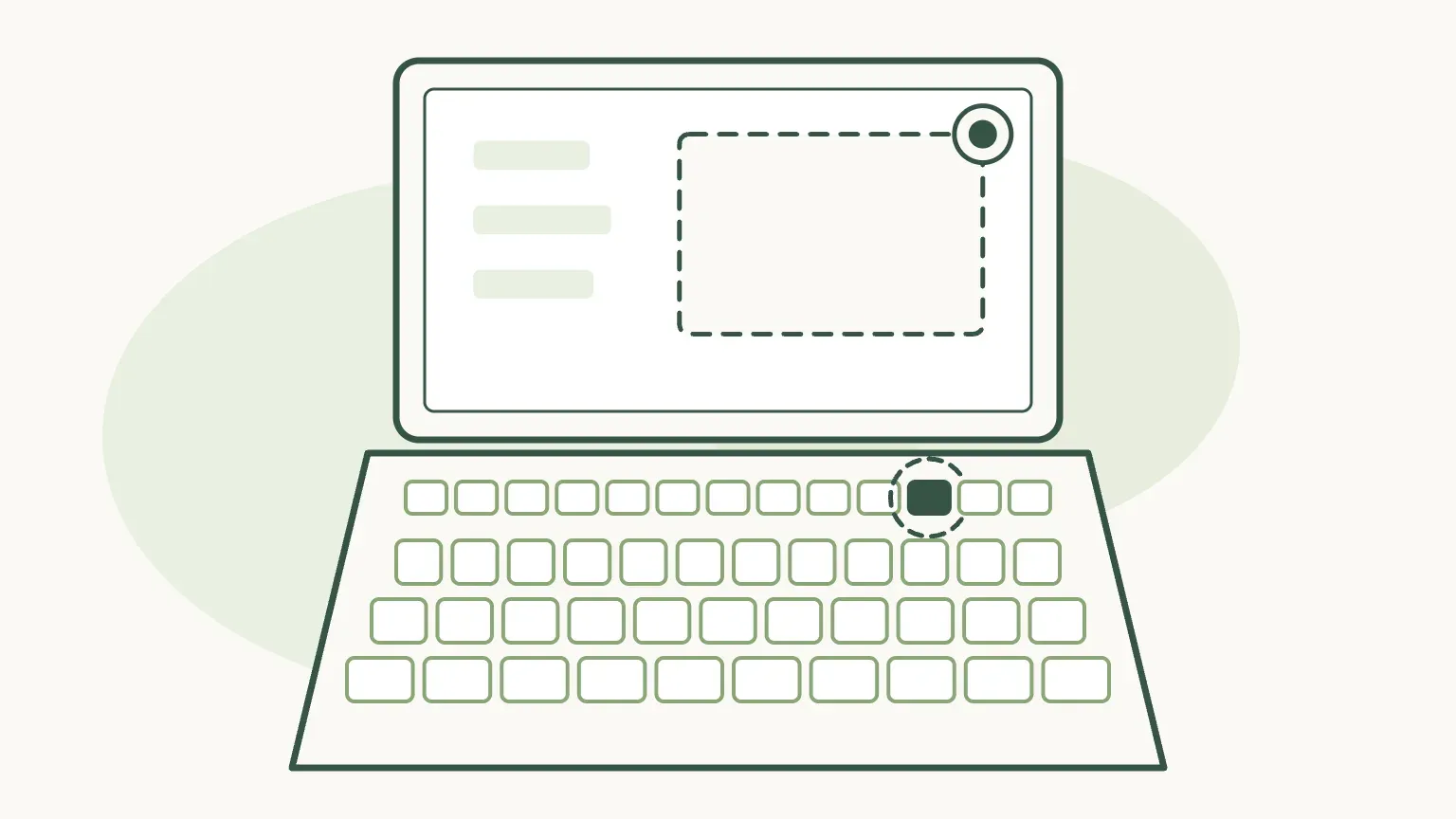
Step by step
Lenovo laptops run Windows, apart from Lenovo Chromebooks, so these are Windows shortcuts. The Lenovo part is finding the PrtSc key, which moves between ranges, and knowing when FnLock gets in the way. The steps work on Windows 11 and Windows 10 unless they say otherwise.
Find PrtSc on your Lenovo keyboard
On most ThinkPads it is in the bottom row, to the right of the space bar between Alt and Ctrl. On IdeaPad, Yoga and Legion laptops look at the right end of the top row, near Insert and Delete. The table by range below has the details.
Shortcut: Print Screen
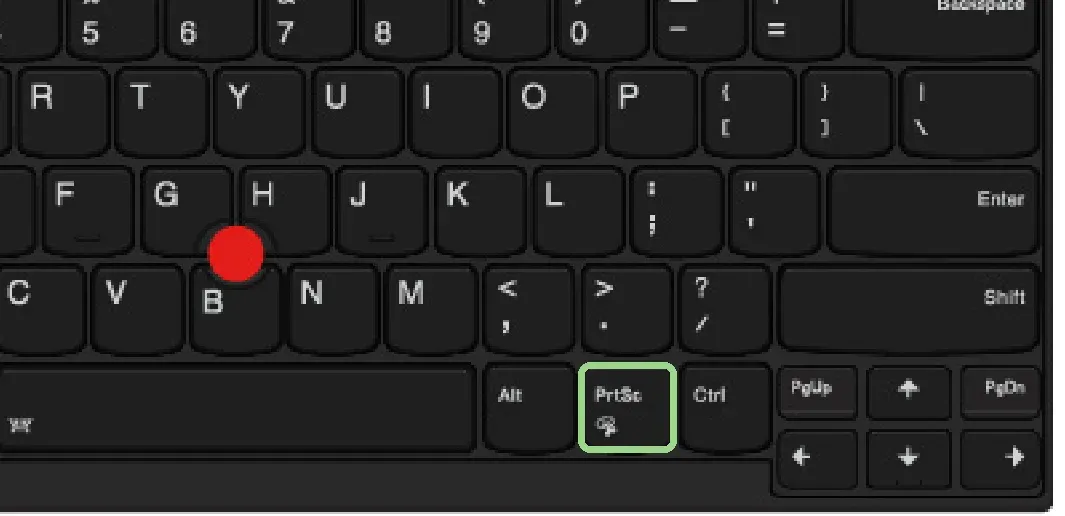
On a ThinkPad, PrtSc sits in the bottom row between the right Alt and Ctrl keys. Lenovo’s drawing from the T480 user guide; the outline is ours.Image: Lenovo Checked 24 October 2026 against download.lenovo.com
Save the whole screen as a picture
Press Windows + PrtSc. The screen flickers once and a PNG lands in Pictures › Screenshots, which Lenovo gives as C:\Users\your name\Pictures\Screenshots. On a laptop with a second monitor plugged in, both screens end up side by side in one file.
Shortcut: Windows + Print Screen
Checked 24 October 2026 against support.lenovo.com
Or pick an area, a window or the full screen
Press Windows + Shift + S. The screen dims and a bar appears at the top: rectangle, freeform, window or full screen. Choose one and drag or click. The capture is copied, and Snipping Tool on Windows 11 also files a copy in Screenshots.
Shortcut: Windows + Shift + S
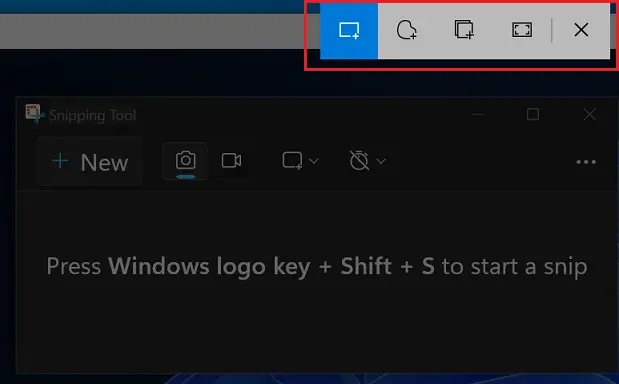
1 Rectangle, the default. 2 Window. 3 Full screen. The bar Windows + Shift + S opens; the red outline is Lenovo’s.Image: Lenovo Checked 24 October 2026 against support.lenovo.com
Copy just the window you are working in
Click the window, then press Alt + PrtSc. On a ThinkPad the two keys sit side by side under your right thumb. Nothing is saved: paste with Ctrl + V into an email, a chat or Paint.
Shortcut: Alt + Print Screen
Checked 24 October 2026 against support.microsoft.com
Open the picture, mark it up or save it elsewhere
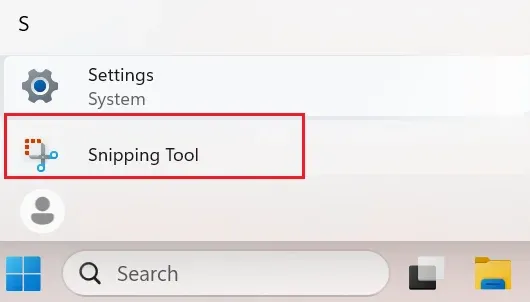
Snipping Tool opens your capture with a pen, a highlighter and a crop. On Windows 11 it tells you the file is already in Screenshots; the save button keeps a copy anywhere else. To open the tool by hand, type snip in Start.
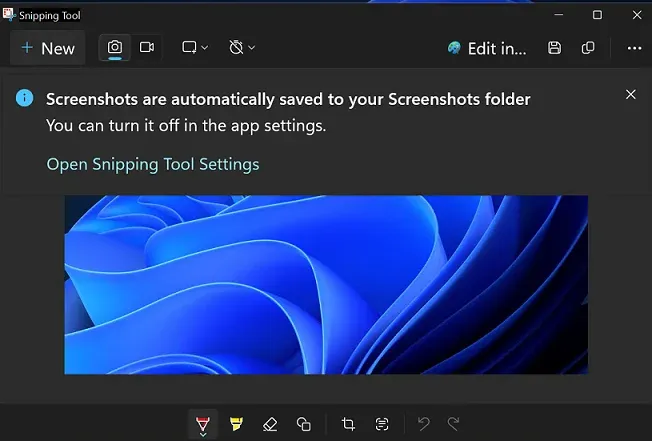
1 The notice that the snip was saved to Screenshots. 2 Save a copy somewhere else. Snipping Tool on Windows 11.Image: Lenovo Checked 24 October 2026 against support.lenovo.com
Where is the screenshot button on a Lenovo laptop?
On a ThinkPad it is in the bottom row between the right Alt and Ctrl keys; on IdeaPad and Legion laptops it is at the top right. Lenovo’s help only says the key is labelled PrtSc or Print Scrn and to check your model’s user guide, so the positions here are the ones those guides show.
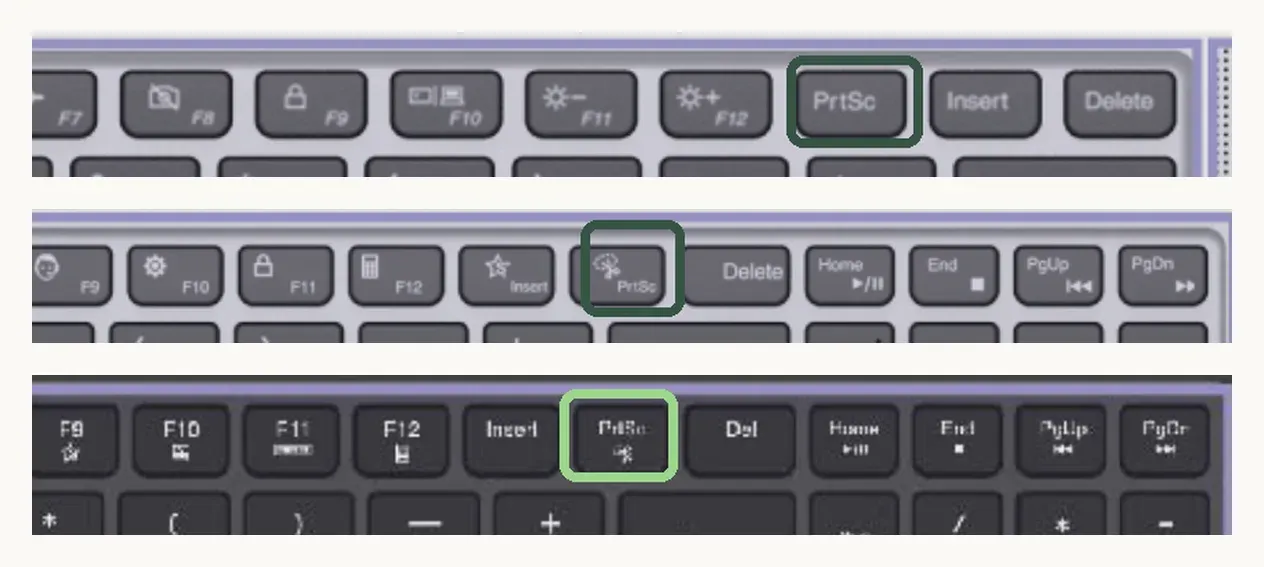
IdeaPad and Legion keyboards put Print Screen at the top right. On the 14-inch IdeaPad Slim 5 it is a key of its own after F12. On the 16-inch IdeaPad Slim 5, which has a number pad, it shares the key left of Delete with a scissors icon: pressed alone, that key opens Snipping Tool, and with Fn it is Print Screen. The Slim 5 user guide explains the rule: the label on top is what the key does alone, the one below needs Fn. On the Legion Pro 5i PrtSc sits between Insert and Delete.
For a Yoga or any model not listed here, find your model name on the sticker under the laptop or in Settings › System › About, then open Lenovo’s user guide for it, which has a labelled drawing of the keyboard.
- ThinkPad T and E series: bottom row, between right Alt and right Ctrl.
- ThinkPad X1 Carbon Gen 12 and Gen 13: top row, next to a Snipping Tool key.
- IdeaPad Slim 5, 14-inch: top row, its own key after F12.
- IdeaPad Slim 5, 16-inch: top row, shared with Snipping Tool, left of Delete.
- Legion Pro 5i: top row, between Insert and Delete.
How to screenshot on a ThinkPad
Shortcut: Fn + Print Screen
ThinkPads have kept Print Screen in the bottom row, beside the right Alt key, for years: Lenovo’s guides for the T480, the T14 Gen 2 and the E14 Gen 5 all show it there. Because it is not a function key, FnLock does not affect it. Press it with the Windows key to save a file, or with Alt for one window.
Hold Fn and press PrtSc and a ThinkPad opens Snipping Tool instead, which all three guides list. That is the quickest way into the editor without the mouse.
The X1 Carbon is the exception. The guides for the Gen 12 and Gen 13 list PrtSc among the top-row keys, with a scissors key for Snipping Tool beside it. When the light on Esc is off, those keys do their printed job; when it is on, hold Fn as well. Press Fn + Esc to switch.
When do you need Fn on a Lenovo?
Shortcut: Fn + Escape
Only for keys in the top row that carry two jobs. Lenovo calls the switch FnLock and puts its light on the Esc key. With the light off, a top-row key does the job printed largest on it; with the light on, it does the other one, and Fn flips it back for one press.
If PrtSc in the top row worked yesterday and does nothing today, someone has probably pressed Fn + Esc. Press it once more, or hold Fn with PrtSc. Lenovo Vantage, the settings app on most Lenovo laptops, has the keyboard options under Device › Input & Accessories.
Why PrtSc opens the snipping bar on Windows 11
On an up-to-date Windows 11 laptop, Print Screen opens Snipping Tool’s capture bar rather than copying the screen in silence, as it did on Windows 10. Microsoft’s Snipping Tool help describes it, and it surprises people who learnt the key on the older system.
To choose, open Settings › Accessibility › Keyboard and use the switch for opening screen capture with the Print screen key. Off gives the old copy-everything behaviour. Either way, Windows + PrtSc still saves a file straight away.
How to take a screenshot on a Lenovo without the Print Screen key
Shortcut: Windows + Shift + S
Use Windows + Shift + S. It needs no PrtSc key and works on every Lenovo running Windows 10 or 11, including keyboards where the key has worn off or a docked laptop with a compact keyboard.
Lenovo’s Print Screen guide adds that some keyboards without the key take Fn + Insert instead. Or type snip in the Start menu, open Snipping Tool and select New. On a Yoga or other 2-in-1 folded into tablet mode, press the Windows button and Volume down together, which Lenovo lists for tablets.
How to screen record on a Lenovo laptop
Shortcut: Windows + Shift + R
Lenovo does not add a screen recorder of its own: its user guides list none, and Vantage handles settings and updates. Recording uses the tools in Windows. On Windows 11, press Windows + Shift + R, drag over an area and select Start. Snipping Tool saves the MP4 in Videos › Screen Recordings, with your microphone and PC sound if you turn them on. The Windows 11 guide goes through the sound buttons.
On Windows 10, Xbox Game Bar records the app in front with Windows + Alt + R, but never the desktop or File Explorer. The Windows 10 guide covers that limit, and the all-Windows guide compares the recorders side by side.
Record a Lenovo’s screen, camera and voice with Rescreen
Rescreen runs in Chrome or Edge, so nothing is installed, which matters on a ThinkPad managed by an IT team that blocks new apps. Pick your microphone and camera, then choose what to share: on Windows, an Entire screen with Share with system audio switched on carries the laptop’s sound, a tab carries that tab’s sound, and a single window usually carries no computer sound, only your voice.
You appear in a round camera bubble in a corner. When you stop, the take is already uploaded, silences and false starts are cut, and you send a link. Test the laptop’s built-in microphone and camera first with the microphone test and webcam test; the Chrome guide explains each option in the sharing box.
Screenshots on a Lenovo Chromebook
Lenovo Chromebooks, such as the IdeaPad Flex and Duet, run ChromeOS, where the Windows keys above do nothing. Lenovo’s Chromebook article gives Ctrl + Show windows for the whole screen and Ctrl + Shift + Show windows for part of it, saved to the Files app. The same capture tool records video; the Chromebook guide has the steps.
Send a screenshot or recording from a Lenovo
A screenshot PNG is small enough for any email or chat. A recording is not: a few minutes of MP4 from Snipping Tool can be hundreds of megabytes. Shrink it in the browser with the video compressor before attaching it, or share a link instead.
If you are capturing a problem for IT support or a developer, the bug report guide explains when a short video with your voice says more than a picture. The Dell, HP and Acer guides cover the same keys on those brands, for a mixed office.
Snipping Tool or Rescreen
| Snipping Tool | Rescreen | |
|---|---|---|
| Audio | Recordings: microphone and PC audio, from Snipping Tool 11.2307. Screenshots have none. | Your microphone, plus the sound of a browser tab, or of the whole computer where your browser offers it. |
| Webcam | None. | Your camera in a round bubble over the screen, or the camera on its own. |
| Editing | Pen, highlighter and crop for screenshots; video trimming in Clipchamp. | Done when you stop recording: cuts mistakes, retakes, filler words and silences, zooms into what you do, reduces noise and levels your voice, speeds up still screens. |
| Length | No limit stated by Microsoft. | Up to five hours per recording, on the free plan. |
| Sharing | Files in Pictures › Screenshots and Videos › Screen Recordings, sent by you. | A link anyone can watch without an account. |
| File format | PNG for screenshots, MP4 for recordings. | MP4 download in 4K, 2K or HD on Pro. |
| Cost | Free, part of Windows. | Free. Pro is $10 / month billed $120 yearly, or $20 monthly. |
What Snipping Tool can't do
- PrtSc alone and Alt + PrtSc only copy; nothing is saved until you paste.
- Windows + PrtSc takes every connected screen in one picture.
- Lenovo adds no recorder: Snipping Tool records on Windows 11 only, and Game Bar on Windows 10 records one app, never the desktop.
- Neither Windows tool records your camera, trims pauses or gives you a link to share.
- Top-row PrtSc keys follow FnLock, so the same press can do two different things.
If it doesn't work
PrtSc in the top row does nothing on my IdeaPad or X1 Carbon
FnLock has probably switched the row. Look at the light on Esc, then press Fn + Esc once, or hold Fn and press PrtSc. Windows + Shift + S works whichever way the row is set.
Pressing PrtSc opens Snipping Tool instead of taking the picture
On a 16-inch IdeaPad the scissors is the key’s main job, so add Fn for Print Screen. On a ThinkPad, check you are not holding Fn. On any Windows 11 laptop, the Print screen switch in Settings › Accessibility › Keyboard decides whether the key opens the capture bar.
I pressed Print Screen but there is no file
PrtSc on its own copies to the clipboard only. Paste it with Ctrl + V, or use Windows + PrtSc next time, which saves to Pictures › Screenshots. If Pictures syncs with OneDrive, look in OneDrive › Pictures › Screenshots.
The screenshot key opens OneDrive, Dropbox or another app
That app has taken over the key. Turn off its screenshot option or close it, and PrtSc goes back to Windows.
My ThinkPad’s PrtSc key seems to be missing
Look to the right of the space bar, between Alt and Ctrl, rather than along the top. On an X1 Carbon Gen 12 or later it is in the top row. If you still cannot find it, use Windows + Shift + S.
Questions people ask
How do I take a screenshot on a Lenovo keyboard?
Press Windows + PrtSc to save the whole screen, or Windows + Shift + S to pick an area. PrtSc is between right Alt and Ctrl on a ThinkPad and at the top right on IdeaPad and Legion.
Why won’t my Lenovo laptop screenshot?
Usually FnLock has switched the top row, so PrtSc needs Fn, or another app has taken the key. Windows + Shift + S works either way.
How do I take a picture with my Lenovo laptop?
For a photo with the built-in camera, open the Camera app from Start and select the photo button. For a picture of the screen, press Windows + PrtSc.
How do I take a screenshot on a Lenovo laptop without the Print Screen button?
Press Windows + Shift + S and drag over what you want. Some Lenovo keyboards without the key use Fn + Insert, and Snipping Tool is in the Start menu.
Where is the screenshot button on a Lenovo laptop?
On a ThinkPad, in the bottom row between the right Alt and Ctrl keys. On IdeaPad, Yoga and Legion laptops, near Insert and Delete at the right end of the top row.
What is the easiest way to take a screenshot on a laptop?
Windows + Shift + S on any Windows laptop, because it works without finding the Print Screen key and lets you choose the area.
How do I screen record on my Lenovo laptop?
On Windows 11, press Windows + Shift + R and drag over the area. On Windows 10, Windows + Alt + R records one app with Game Bar, or use a browser recorder for the whole screen.