How to screen capture on an HP
Press Windows + PrtSc on your HP to save a picture of the whole screen to Pictures › Screenshots, holding fn as well if prt sc shares a key with another action. Press Windows + Shift + S to choose an area or one window instead.
Step by step
An HP laptop or desktop running Windows uses the screenshot tools Windows provides; HP adds the keyboard. These steps start with the one HP-specific part, finding the right key, and end with where the picture lands.
Find prt sc on your HP keyboard
Look along the top row for a key printed prt sc or prt scr. On HP laptops it is usually towards the right-hand end. If the label is in a corner or a different colour, it shares the key with another action, and you hold fn (bottom left) while you press it.
Shortcut: Fn + Print Screen
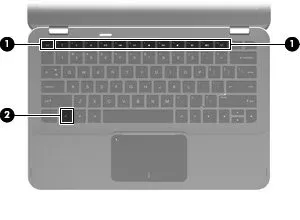
1 The function keys, where prt sc sits on most HP laptops. 2 The fn key. Numbers are HP’s.Image: HP Checked 24 October 2026 against support.hp.com
Save the whole screen in one press
Press Windows + PrtSc. The screen dims for a moment and Windows saves a PNG of everything on it to Pictures › Screenshots. Nothing else opens. Add fn if your prt sc needs it: hold Windows and fn, then press prt sc.
Shortcut: Windows + Print Screen
Checked 24 October 2026 against support.microsoft.com
Or choose an area with Windows + Shift + S
Press Windows + Shift + S. The screen dims and a small bar appears at the top: drag a rectangle, click a window, take the full screen or draw a freeform shape. On Windows 11, prt sc on its own opens this same bar.
Shortcut: Windows + Shift + S
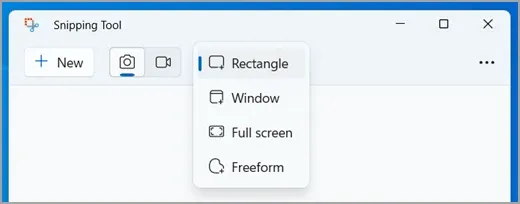
1 Screenshot, not video. 2 Rectangle, an area you drag. 3 One window. 4 The full screen. Windows 11.Image: Microsoft Checked 24 October 2026 against support.microsoft.com
Copy just the window you are in
Click the window, then press Alt + PrtSc. Windows copies that window and nothing behind it. Open Paint, Word or an email and press Ctrl + V to paste it. HP’s own shortcut list says Shift + prt scr for this; Windows uses Alt.
Shortcut: Alt + Print Screen
Checked 24 October 2026 against support.microsoft.com
Open the screenshot
Open File Explorer › Pictures › Screenshots. Windows + PrtSc and Snipping Tool both save there, newest last, as PNG files. A shot copied with Alt + PrtSc is only on the clipboard until you paste it; press Windows + V to see the last few things you copied.
Checked 24 October 2026 against support.microsoft.com
Where is the Print Screen key on an HP laptop?
On an HP laptop, prt sc is one of the keys in the top row, usually near the right-hand end, and HP’s own article puts it in the upper right too. The exact spot moves between models and years, so read the labels rather than counting keys. Full-size HP desktop keyboards have prt sc as a key of its own, to the right of f12, with no fn to hold.
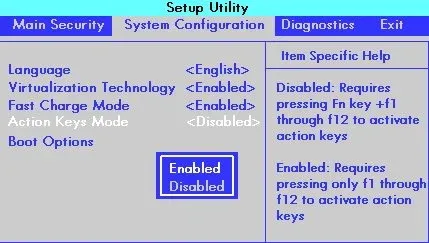
What catches people out is the fn key. HP prints two things on many top-row keys, and only one of them works without fn. Which one is a BIOS setting HP calls Action Keys Mode: turn the computer on, tap f10 to open the BIOS Setup Utility, and look under System Configuration. Enabled, the printed icons work on their own and the f-numbers need fn; Disabled is the other way round. HP’s fn key page has the steps, and some business models (older ProBook and EliteBook) have their own.
If your HP has a key with a camera on it, that is not a screenshot key. HP’s keyboard list calls it the camera privacy key: it switches the webcam off and on. Lenovo laptops are laid out differently again, with the key between Alt and Ctrl on a ThinkPad; the Lenovo guide has them.
Does HP have its own screenshot app?
Not one that HP’s support pages describe. The tools on an HP running Windows are Windows’ own: the prt sc shortcuts, Snipping Tool and, for video, Xbox Game Bar. HP Support Assistant and the other apps HP installs handle updates, drivers and battery health, not capture.
Some guides tell you to look for HP screen-capture software on your laptop. If a program like that came with yours, it was added for that model, and Windows’ shortcuts still work alongside it.
How to screen record on an HP laptop with sound
Shortcut: Windows + Shift + R
Video on an HP works the same way as the pictures: through Windows. Which recorder you get depends on the version, so press Windows + R, type winver and check before you start.
Windows 11: press Windows + Shift + R. Snipping Tool opens in video mode; drag over the area, or over the whole screen, and turn on the microphone button for your voice and the system audio button for the laptop’s own sound before you select Start. The sound buttons arrived with Snipping Tool 11.2307 in September 2023 (Microsoft’s note); if yours has none, update it from the Microsoft Store. Recordings are MP4 files in Videos › Screen Recordings. The Windows 11 guide goes through it step by step.
Windows 10: Snipping Tool takes pictures only. Xbox Game Bar records with Windows + Alt + R, but only the app in front, never the desktop; the Windows 10 guide has the ways round that.
- Your voice only: the microphone button, or Windows + Alt + M in Game Bar.
- The laptop’s sound only: system audio on, microphone off.
- Both: turn on both before you select Start.
Record an HP screen in the browser with Rescreen
If you need your face on the video as well as the screen, or a link to send instead of a big file, Rescreen records in Chrome or Edge on an HP with nothing to install. Open the free screen recorder, choose your microphone and camera, then pick Entire screen, a window or a tab in the browser’s sharing box. For the laptop’s sound, choose Entire screen and turn on Share with system audio; a single window carries your voice only.
When you stop, the take is uploaded already, with long pauses and false starts trimmed and your camera in a round bubble in the corner. If the built-in webcam or microphone is not the one the browser picks, the webcam test and the microphone test show which device it is using. Rescreen records video only; for a still picture, use the shortcuts above.
Screenshots on an HP Chromebook
Shortcut: Control + Show windows
An HP Chromebook runs ChromeOS, not Windows, so none of the keys above apply and it has no prt sc key. Press Ctrl + Show windows for the whole screen, or Ctrl + Shift + Show windows to choose an area or a window and to switch to recording. Show windows is the top-row key with a box and two lines beside it. Screenshots go to the Downloads folder.
The Chromebook guide covers recording on ChromeOS, sound included, and what to do on a school Chromebook where capture is switched off.
Where do screenshots go on an HP?
Where a screenshot ends up depends on how you took it, not on the computer. A capture that is not in the folder was copied rather than saved.
- Windows + PrtSc: saved to Pictures › Screenshots as a PNG.
- Windows + Shift + S, or prt sc on Windows 11: saved to Pictures › Screenshots and copied, unless automatic saving is off in Snipping Tool’s settings.
- prt sc on Windows 10, Alt + PrtSc: copied only. Paste it with Ctrl + V.
- Snipping Tool video: Videos › Screen Recordings, as MP4.
- Game Bar: Videos › Captures, as MP4 for video and PNG for stills.
- HP Chromebook: Downloads.
Snipping Tool (Windows 11 on an HP) or Rescreen
| Snipping Tool (Windows 11 on an HP) | Rescreen | |
|---|---|---|
| Audio | Microphone and system audio for video, from version 11.2307. | Your microphone, plus the sound of a browser tab, or of the whole computer where your browser offers it. |
| Webcam | None. | Your camera in a round bubble over the screen, or the camera on its own. |
| Editing | Pen and highlighter for pictures; video is trimmed in Clipchamp. | Done when you stop recording: cuts mistakes, retakes, filler words and silences, zooms into what you do, reduces noise and levels your voice, speeds up still screens. |
| Length | No set limit stated by Microsoft. | Up to five hours per recording, on the free plan. |
| Sharing | A PNG or MP4 file that you send yourself. | A link anyone can watch without an account. |
| File format | PNG for screenshots, MP4 for video. | MP4 download in 4K, 2K or HD on Pro. |
| Cost | Free, part of Windows 11. | Free. Pro is $10 / month billed $120 yearly, or $20 monthly. |
What Snipping Tool (Windows 11 on an HP) can't do
- prt sc alone copies or opens the snipping bar; only Windows + PrtSc and Snipping Tool save a file without another step.
- No built-in way captures a whole scrolling web page; take several shots or use the browser’s own tools.
- Snipping Tool records video on Windows 11 only, with no webcam and only a trim in Clipchamp afterwards.
- Game Bar records one app at a time and cannot record the desktop or File Explorer.
- Streaming apps often show black in a screenshot or recording on purpose.
If it doesn't work
Pressing prt sc on my HP does nothing
Hold fn and press prt sc again. If that works, Action Keys Mode decides which of the key’s two jobs needs fn; change it in the BIOS under System Configuration if you would rather not hold fn. If neither works, use Windows + Shift + S, which needs no prt sc at all.
prt sc opens a snipping bar instead of taking the screenshot
That is Windows 11’s default. Pick Full screen on the bar to finish the shot, or turn it off under Settings › Accessibility › Keyboard › Use the Print screen key to open screen capture, after which prt sc copies the whole screen as it did on Windows 10.
I took a screenshot but it is not in Pictures › Screenshots
It was copied, not saved: prt sc on Windows 10 and Alt + PrtSc only copy. Paste it into Paint with Ctrl + V and save it, or use Windows + PrtSc next time. If OneDrive backs up your Pictures folder, look in OneDrive › Pictures › Screenshots instead.
My HP screen recording has no sound
In Snipping Tool, check that the microphone and system audio buttons are on before you select Start. Check the right microphone is chosen in Settings › System › Sound, and that the laptop is not muted with its own mute key.
A video or film comes out black
Streaming services block capture on purpose, and Windows records a black box where the video plays. There is no setting to change it; it is not a fault in the HP.
Questions people ask
How do I take a screenshot on an HP laptop?
Press Windows + PrtSc, adding fn if your prt sc key needs it. The picture saves to Pictures › Screenshots.
What is the easiest way to screenshot on an HP?
Windows + PrtSc: one press saves the whole screen as a file. For part of the screen, Windows + Shift + S is just as quick.
How do I take a picture of the screen with an HP laptop?
That is a screenshot: Windows + PrtSc for the whole screen, or Windows + Shift + S for an area. For a photo with the webcam, open the Camera app from Start instead.
How do I find my screenshots on an HP?
Open File Explorer, then Pictures › Screenshots. If OneDrive backs up your pictures, they are in OneDrive › Pictures › Screenshots.
Where can I find my screenshots?
On Windows, in Pictures › Screenshots for shots that were saved; copied ones are on the clipboard, which Windows + V shows. On a Chromebook, in Downloads.
How do I screenshot on an HP laptop using the keyboard?
Windows + PrtSc saves the whole screen, Alt + PrtSc copies one window, and Windows + Shift + S lets you pick an area. Hold fn as well if prt sc shares its key.