How to screen record on Windows 10
Click inside the app you want to record and press Windows + Alt + R: Xbox Game Bar, built into Windows 10, records that one app until you press the keys again. It cannot record the desktop or File Explorer, so for the full screen use PowerPoint’s Screen Recording or a browser recorder such as Rescreen.
Step by step
Windows 10 has one video recorder of its own, Xbox Game Bar. It was built for games, so it follows whichever app has focus and records only that app. These steps get a clean clip of one program, such as a browser, Word or a game.
Make sure Game Bar is switched on
Press Windows + I to open Settings, type xbox in the search box and choose Enable Xbox Game Bar. The switch at the top of that page has to be On. A work or school PC may have it switched off by the IT team, in which case the switch is greyed out.
Shortcut: Windows + I
Checked 24 October 2026 against support.microsoft.com
Bring the app you want to record to the front
Open the program and click once inside it so it has focus. Game Bar records the window that is active when you start. Maximise it first if you want the clip to fill the frame, because the recording is the size of the window.
Checked 24 October 2026 against support.xbox.com
Open Game Bar and check the sound
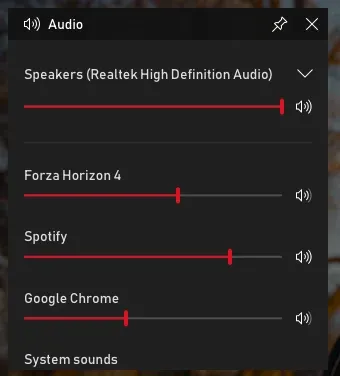
Press Windows + G. A strip appears across the top of the screen with widgets around it. Open the Audio widget to set the level of each app, and in Settings › Capturing pick All if you want every app’s sound in the clip rather than just the one you are recording.
Shortcut: Windows + G

1 Widget menu. 2 Capture. 3 Audio. 4 Settings. Game Bar on Windows 10, April 2019.Image: Microsoft Checked 24 October 2026 against support.microsoft.com
Start recording
Press Windows + Alt + R, or select the round Start recording button in the Capture widget. The screen flashes and a small timer appears at the edge. Windows + Alt + M turns your microphone on or off while it runs.
Shortcut: Windows + Alt + R
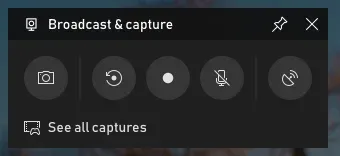
1 Screenshot. 2 Record the last few moments. 3 Start recording. 4 Microphone on or off. 5 See all captures. Then called Broadcast & capture; April 2019.Image: Microsoft Checked 24 October 2026 against support.xbox.com
Stop, then find the file
Press Windows + Alt + R again, or select the stop square on the timer. The clip is an MP4 in Videos › Captures, named after the app with the date and time. In Game Bar, See all captures opens the same files in the Gallery.
Checked 24 October 2026 against support.microsoft.com
Does Windows 10 have a screen recorder?
Yes, but only for apps. Game Bar is the sole video recorder Windows 10 ships with, and it will not capture the desktop, the taskbar or File Explorer. If you open it there, the record button stays grey and Windows says gaming features are not available for the desktop.
Two tools people expect to find are missing. The Snipping Tool on Windows 10 takes screenshots only; video recording came to Snipping Tool on Windows 11 and never reached Windows 10. Steps Recorder (psr.exe) saves a set of screenshots with a written list of clicks, not a video, and Microsoft has marked it for removal; Microsoft’s Steps Recorder page says Windows 10 keeps it.
- One app or a game: Game Bar, Windows + Alt + R.
- The whole desktop, with Microsoft 365: PowerPoint’s Screen Recording.
- The whole desktop, without Office: a recorder that runs in Chrome or Edge.
- A bug report for IT: Steps Recorder still works on Windows 10, but it makes pictures, not a video.
What Game Bar can and cannot do on Windows 10
Game Bar is good at what it was made for: a clip of one program with its sound, in a common MP4 file, with nothing to install. Everything else about it follows from the fact that it records a single app.
A menu, dialog or pop-up that opens in its own window may be missing from the clip, and switching to another app mid-take does not switch the recording with you. Video playing in some streaming apps comes out black. Check a ten-second test take before you record anything long.
- Area: the active app’s window only. No desktop, no region you draw, no second monitor.
- Sound: the app, or every app with Capturing set to All, plus your microphone if it is on.
- Camera: none.
- Length: capped under Settings › Gaming › Captures, two hours unless you change it.
- File: MP4 in Videos › Captures.
How to record the full screen on Windows 10
Shortcut: Windows + Shift + B
For the desktop itself, a walk through several programs, or anything in File Explorer, you need a tool that captures the display rather than an app. Windows 10 has no such tool built in, which is the gap most guides skip over.
PowerPoint has one if you have Microsoft 365 or Office 2016 or later. Open a blank presentation, go to Insert › Screen Recording, then press Windows + Shift + B to take the whole screen, or use Select Area to drag a box. Audio and the pointer are recorded unless you deselect them on the Control Dock. Select Record, and press Windows + Shift + Q to stop. Right-click the video on the slide and choose Save Media as to get a file you can share.
Rescreen does it in the browser, free, with no Office licence. Open the screen recorder for Windows in Chrome or Edge, choose Entire screen in the sharing box and turn on Share with system audio if you want the computer’s sound as well as your voice.
Record your desktop and camera with Rescreen
Rescreen runs in Chrome and Edge on Windows 10, so it does not depend on the operating system getting updates. You pick a microphone and camera, then the browser asks what to share: the entire screen, one window, or a tab. Only the entire screen carries every app’s sound on Windows; a tab carries that tab’s sound, and a single window carries none, only your voice.
When you stop, the take is already uploaded. Rescreen trims long pauses and false starts, shows your face in a round bubble in a corner, and gives you one link to send instead of a file to attach. If the microphone or camera is not the one you expect, the microphone test and the webcam test show which device the browser is using.
The Chrome guide covers the sharing box in more detail, and the all-Windows guide compares every built-in tool if some of your PCs already run Windows 11.
Windows 10 after the end of support
Microsoft ended support for Windows 10 on 14 October 2025. A Windows 10 PC keeps working, Game Bar included, but it no longer gets security updates unless it is enrolled in Extended Security Updates. Microsoft’s end-of-support page explains the options.
For screen recording, that means Windows 10 will not get the Snipping Tool recorder or any new capture feature. If you move to Windows 11, the Windows 11 guide covers its Snipping Tool recorder, which records any part of the screen, the desktop included.
Make a Windows 10 recording easier to send
Game Bar and PowerPoint both save at the size of what you recorded, and a long clip at full resolution is too big for most email. Compress a video for email shrinks an MP4 in the browser to fit an attachment limit, without uploading it.
To share a clip from Videos › Captures, right-click it in File Explorer and choose Share, or upload it to OneDrive and send the link. Rename the file first: Game Bar’s names are long and include the time to the second.
Xbox Game Bar (Windows 10) or Rescreen
| Xbox Game Bar (Windows 10) | Rescreen | |
|---|---|---|
| Audio | The app’s sound, or all apps with Capturing set to All, plus the microphone. | Your microphone, plus the sound of a browser tab, or of the whole computer where your browser offers it. |
| Webcam | None. | Your camera in a round bubble over the screen, or the camera on its own. |
| Editing | None. Trim in another app. | Done when you stop recording: cuts mistakes, retakes, filler words and silences, zooms into what you do, reduces noise and levels your voice, speeds up still screens. |
| Length | Up to the limit in Settings › Gaming › Captures; two hours by default. | Up to five hours per recording, on the free plan. |
| Sharing | An MP4 file in Videos › Captures that you send yourself. | A link anyone can watch without an account. |
| File format | MP4. | MP4 download in 4K, 2K or HD on Pro. |
| Cost | Free, built into Windows 10. | Free. Pro is $10 / month billed $120 yearly, or $20 monthly. |
What Xbox Game Bar (Windows 10) can't do
- Game Bar records one app window at a time, never the desktop, the taskbar or File Explorer.
- Game Bar has no webcam overlay and no editor; trimming happens in another app.
- Snipping Tool on Windows 10 has no video recording; that is a Windows 11 feature.
- PowerPoint records the full screen but needs Microsoft 365 or Office 2016 or later.
- Windows 10 no longer gets new features or, without Extended Security Updates, security fixes.
If it doesn't work
Windows + Alt + R does nothing on Windows 10
Game Bar ignores the desktop and File Explorer, so click inside an app and press the keys again. If nothing happens even then, check that Enable Xbox Game Bar is on in Settings and that the shortcut has not been changed in Game Bar’s settings under Shortcuts.
My PC will not let me screen record at all
On a work or school PC, Game Bar is often switched off by policy and the setting is greyed out; ask IT, or use a browser recorder. On a home PC, open Game Bar with Windows + G once inside a game or app so Windows recognises it, then try the shortcut again.
The Game Bar clip has no sound
In Game Bar, open Settings › Capturing and choose All instead of Game. Check that the app is not muted in the Audio widget, and that the microphone button in the Capture widget is not crossed out if you want your voice.
PowerPoint’s Control Dock disappears after the countdown
Unless pinned, the dock slides into the top edge while recording; move the pointer to the top of the screen to bring it back, or press Windows + Shift + Q to stop. If it never appears, allow PowerPoint camera and microphone access under Settings › Privacy.
Ctrl + Alt + A does not take a screenshot
It is not a Windows shortcut. It belongs to another program that installed it, often a chat or screenshot app, and stops working when that app is closed or removed. Windows 10’s own keys are Windows + Shift + S for an area and Windows + Print Screen for the whole screen.
Questions people ask
Does Windows 10 have a screen recorder?
Yes, Xbox Game Bar, opened with Windows + G. It records one app at a time, not the desktop, so the full screen needs PowerPoint or a browser recorder.
How do I record my PC screen on Windows 10?
Click into the app you want and press Windows + Alt + R to start and stop a Game Bar recording. The MP4 lands in Videos › Captures.
How do I record the full screen on Windows 10?
Use PowerPoint’s Insert › Screen Recording and press Windows + Shift + B, or record the entire screen from Chrome or Edge with a browser recorder. Game Bar cannot record the desktop.
Why is my Windows + Alt + R not working?
Usually because the desktop or File Explorer has focus, which Game Bar cannot record, or because Game Bar is switched off in Settings. Click inside an app and try again.
Why is my PC not letting me screen record?
Game Bar may be turned off, blocked by your organisation, or facing the desktop. Streaming apps also block recording on purpose and show black instead.
How do I activate Ctrl + Alt + A?
You cannot from Windows itself, because Ctrl + Alt + A is not a Windows shortcut. Check the settings of the app that used it, or use Windows + Shift + S for a screenshot.