How to screen record on Windows 11
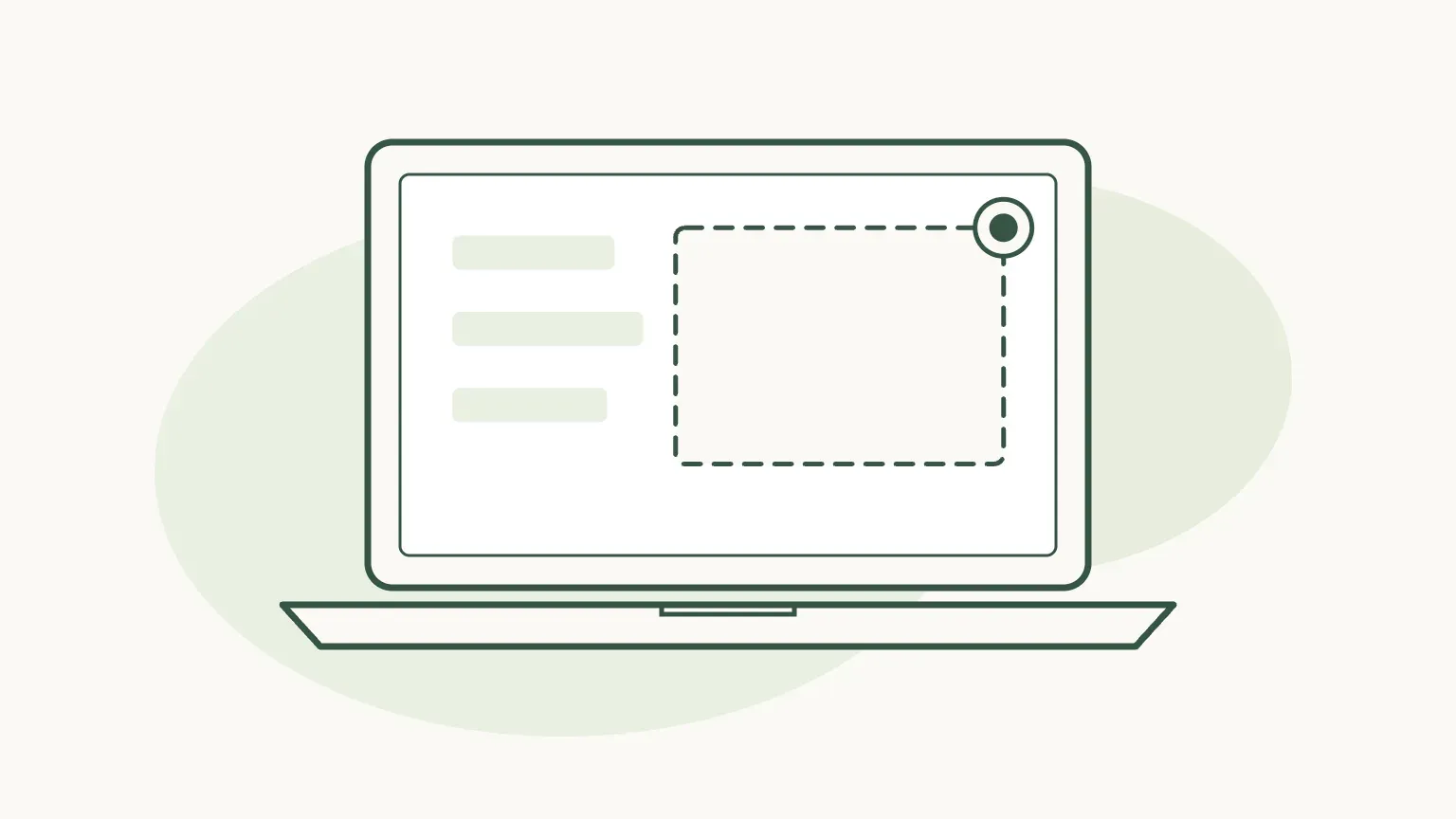
Press Windows + Shift + R to open Snipping Tool’s recorder, drag a box over the part of the screen you want, and select Start. Select Stop when you are done; Snipping Tool 11.2405 or later saves the MP4 to Videos › Screen Recordings on its own.
Step by step
Windows 11 records the screen with Snipping Tool, the same app that takes screenshots. Recording arrived in Snipping Tool 11.2211 in late 2022, and the shortcut and sound buttons in 11.2307, which reached ordinary Windows 11 PCs from September 2023. The steps below are for that version or later.
Open the recorder
Press Windows + Shift + R. The screen dims and the capture bar appears at the top, already set to record. Without the keyboard, open Snipping Tool from Start, select the video camera and then New. On many PCs Print Screen opens the same bar; select the video camera on it to switch from screenshots.
Shortcut: Windows + Shift + R
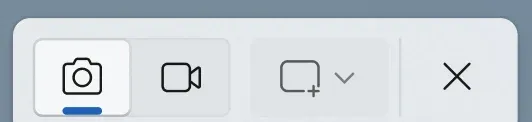
1 Screenshot. 2 Record, the video camera. 3 The area to capture. 4 Close. From Snipping Tool 11.2307, August 2023.Image: Microsoft Checked 24 October 2026 against support.microsoft.com
Drag over what you want to record
Click and drag a rectangle over the area to capture. For the whole screen, drag from one corner to the opposite one. You can still move the edges before you start, so leave a little room around menus that open near the edge.
Checked 24 October 2026 against support.microsoft.com
Choose the sound, then select Start
Two buttons on the bar decide what you hear later: the microphone for your voice and the speaker on a screen for sound your PC plays. Each one is on when it is not crossed out. Select Start; a three-second countdown runs before recording begins.
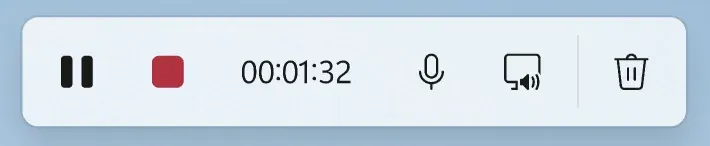
1 Pause. 2 Stop. 3 Time so far. 4 Microphone. 5 PC audio. 6 Delete the take. From Snipping Tool 11.2307, August 2023.Image: Microsoft Checked 24 October 2026 against blogs.windows.com
Stop and save
Select the red Stop button. The recording opens in Snipping Tool to play back. From Snipping Tool 11.2405 it is already saved as an MP4 in Videos › Screen Recordings; on an older version, select Save before you close the window or the take is gone.
Checked 24 October 2026 against blogs.windows.com
Check your Snipping Tool version
Most problems with recording on Windows 11 come from an old Snipping Tool, because the app updates through the Microsoft Store, not with Windows itself. Open Snipping Tool, select See more (the three dots) › Settings, and read the version under About this app.
If it starts with 11.22 or lower, or the bar has no microphone button, open the Microsoft Store, select Library and then Get updates. Snipping Tool appears in the list when there is a newer version. A work or school PC may hold updates back; the IT team decides that, not you.
- 11.2211 (December 2022): screen recording first appears. 11.2212 adds pause.
- 11.2307 (August 2023): Windows + Shift + R, one capture bar for screenshots and video, microphone and PC audio.
- 11.2405 (June 2024): recordings save themselves to Videos › Screen Recordings; turn this off under Settings › Screen recording.
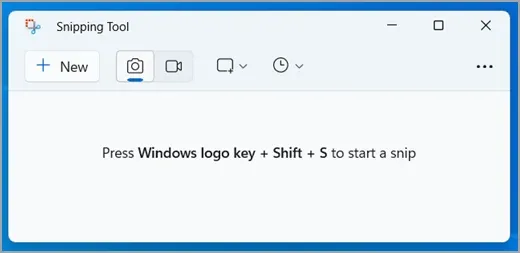
Screenshot or recording: two shortcuts, one bar
Shortcut: Windows + Shift + S
Windows + Shift + S opens the same capture bar set to screenshots, and Windows + Shift + R opens it set to video. If you land in the wrong mode, select the camera or the video camera on the bar to switch; nothing is captured until you drag an area.
Whether Print Screen opens the bar is a setting: Settings › Accessibility › Keyboard › Use the Print screen key to open screen capture. Turn it off if another app, such as a game launcher, already uses that key. On a laptop where prt sc shares a key, such as many HPs, hold fn as well; the HP guide, the Dell guide, the Lenovo guide and the Acer guide show where the key is.
Record sound with the screen
Snipping Tool records your microphone, the sound your PC plays, both or neither, from the two buttons on the recording bar. The default for new recordings is set under See more › Settings, and if you have more than one microphone you pick which one there before you start.
Make a ten-second test first: say a sentence, play a sound in the app you will show, then stop and listen to the file. If your voice is missing, try the microphone test in a browser to see whether Windows hears the microphone at all. The Windows 11 audio guide goes through each sound setting and what to check when one is missing or doubled.
Record a game or app with Xbox Game Bar
Shortcut: Windows + Alt + R
Game Bar comes with Windows 11 and records one app or game at a time, which suits gameplay or a single program. Click into the app, press Windows + Alt + R to start, and the same keys again to stop. Windows + Alt + M turns the microphone on or off while it runs. Press Windows + G for the full overlay.
Clips are MP4 files in Videos › Captures. Game Bar cannot record the desktop or File Explorer, covers one monitor at a time, and stops at the maximum length set under Settings › Gaming › Captures. If nothing happens, turn it on under Settings › Gaming › Game Bar.
- Audio to record: All takes your microphone, the app and every other sound on the PC.
- Game only keeps just the app or game you are recording.
- None drops the PC’s sound but still records your microphone.
Edit or share a recording afterwards
Snipping Tool and Game Bar stop at a file. To cut out a mistake, add captions or join clips, open the recording in Clipchamp, Microsoft’s editor that comes with Windows 11; Snipping Tool shows an Edit in Clipchamp button after a recording. Clipchamp can also record the screen itself under Record & create › Screen, though for a personal account it records sound only from a browser tab, and it limits each take to a maximum shown next to the timer.
A long recording can be hundreds of megabytes. Before you upload it, the video compressor shrinks it in the browser without uploading it anywhere, and compress a video for email fits it under an attachment limit.
Record in Chrome or Edge with Rescreen
Rescreen works in Chrome or Edge on Windows 11, with nothing to install. It records your screen, microphone and camera together, and when you stop it removes the long pauses and false starts, puts your camera in a small round bubble, and gives you a link to send instead of a file.
The sound depends on what you share in the browser’s picker. Share the entire screen and turn on Also share system audio to include everything the PC plays. Share a tab and keep Also share tab audio on for that tab’s sound. A shared window brings no sound, only your microphone. If your camera does not show up, the webcam test shows whether the browser can see it.
Snipping Tool or Rescreen
| Snipping Tool | Rescreen | |
|---|---|---|
| Audio | Microphone and PC audio, from version 11.2307. | Your microphone, plus the sound of a browser tab, or of the whole computer where your browser offers it. |
| Webcam | None. | Your camera in a round bubble over the screen, or the camera on its own. |
| Editing | None in the app; Edit in Clipchamp opens the file there. | Done when you stop recording: cuts mistakes, retakes, filler words and silences, zooms into what you do, reduces noise and levels your voice, speeds up still screens. |
| Length | No limit stated by Microsoft. | Up to five hours per recording, on the free plan. |
| Sharing | A file in Videos › Screen Recordings, or the Share button. | A link anyone can watch without an account. |
| File format | MP4. | MP4 download in 4K, 2K or HD on Pro. |
| Cost | Free, comes with Windows 11. | Free. Pro is $10 / month billed $120 yearly, or $20 monthly. |
What Snipping Tool can't do
- Snipping Tool records the rectangle you drag, so a window moved during the take can leave the frame.
- No camera: your face is only on the recording if a camera app is open inside the area.
- Editing in Snipping Tool is playback only; cuts and captions mean opening the file in Clipchamp.
- Recordings are MP4 files you share yourself, and Microsoft states no length limit beyond your free disk space.
- Protected video, such as some streaming services, records as a black box.
If it doesn't work
Windows + Shift + R does nothing, or there is no video camera in Snipping Tool
Your Snipping Tool is older than 11.2307. Update it from the Microsoft Store (Library › Get updates), then try again. On a work or school PC, IT may have removed or blocked Snipping Tool; ask them.
The record button is greyed out
Close and reopen Snipping Tool, then update it from the Microsoft Store. If it stays grey on a managed PC, recording has been turned off by policy and only your IT team can turn it back on.
The recording has no sound
On the recording bar, the microphone or PC audio button was crossed out. Turn on the ones you need before Start, and check under See more › Settings that the right microphone is picked. Older versions than 11.2307 record no sound at all.
Windows + Alt + R does nothing
That shortcut belongs to Game Bar, not Snipping Tool. Turn Game Bar on under Settings › Gaming › Game Bar, click into an app first (it will not record the desktop or File Explorer), or use Windows + Shift + R instead.
Part of the recording is black
The app was showing protected video, which Windows keeps out of every recorder. Nothing in the settings changes this; record a different source, or show that part another way.
Questions people ask
Does Windows 11 have a screen recorder?
Yes. Snipping Tool records the screen, with your microphone and the PC’s sound, from version 11.2307. Xbox Game Bar, also included, records one app or game.
What is the shortcut key to screen record on Windows 11?
Windows + Shift + R opens Snipping Tool ready to record. Windows + Alt + R starts and stops a Game Bar recording of the app in front.
How do I turn on the Windows 11 screen recorder?
There is nothing to switch on for Snipping Tool: update it from the Microsoft Store and press Windows + Shift + R. Game Bar is turned on under Settings › Gaming › Game Bar.
Why can’t I screen record in Windows 11?
Usually because Snipping Tool is older than version 11.2307, or a work or school PC blocks it. Update it from the Microsoft Store; if it is still missing, ask your IT team.
Why doesn’t Windows + Alt + R work?
It is Game Bar’s shortcut, and Game Bar may be turned off, or the desktop or File Explorer was in front, which it cannot record. Turn it on in Settings › Gaming › Game Bar and click into an app first.
How do I record my PC screen?
On Windows 11, press Windows + Shift + R, drag over the area and select Start. On Windows 10, which has no Snipping Tool recorder, use Game Bar or a browser recorder such as Rescreen.