How to screen capture on a Dell
Press Windows + PrtSc to save a picture of the whole screen to Pictures › Screenshots, or Windows + Shift + S to drag over just the part you want. On most current Dell laptops Print Screen is printed on the F10 key, and if F10 alone does nothing, hold Fn and press F10.
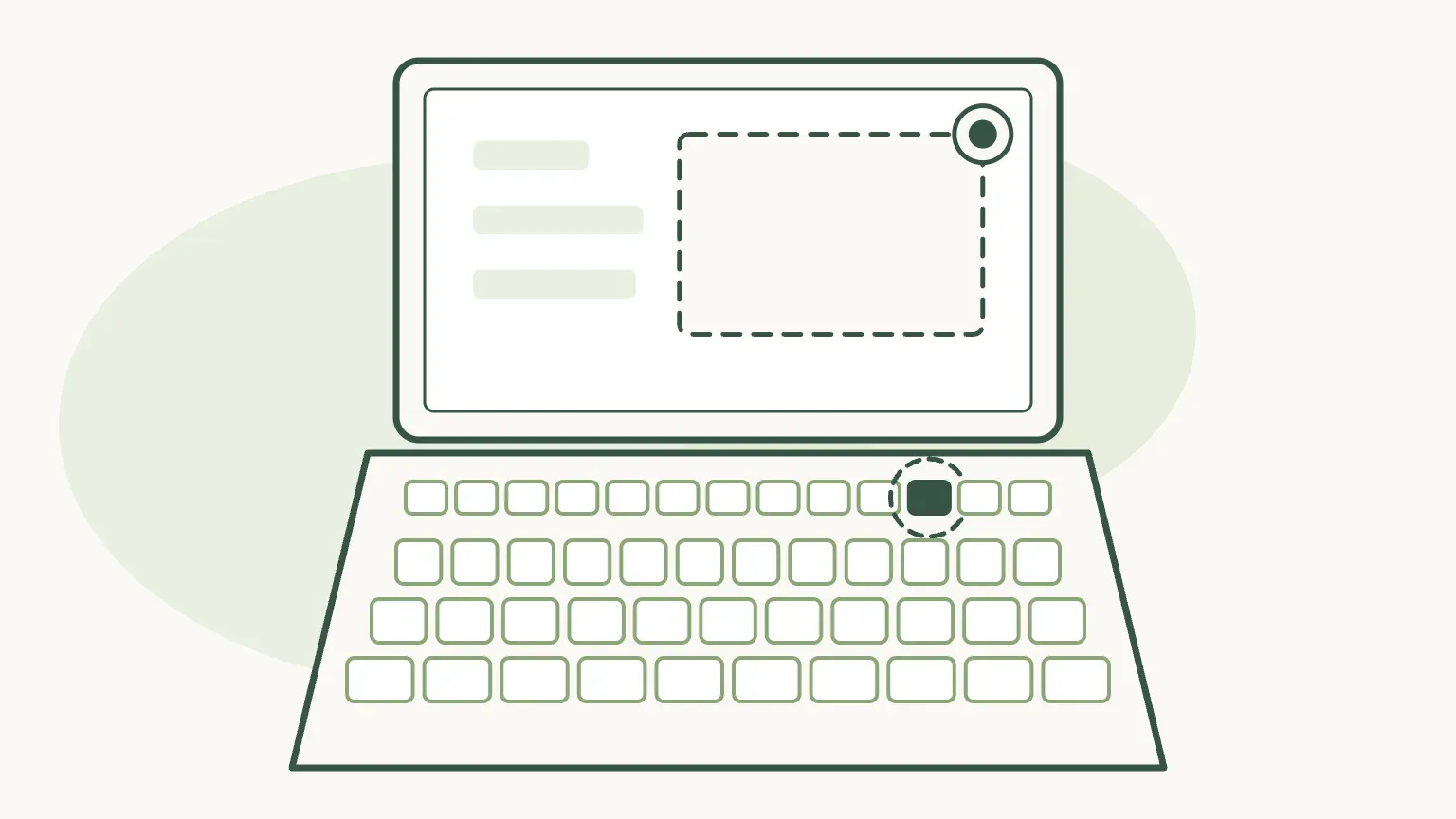
Step by step
Dell computers run Windows, so the screenshot keys are Windows keys. What differs between Dell models is where Print Screen sits on the keyboard, and whether you need Fn to reach it. These steps work on Windows 11 and Windows 10 unless they say otherwise.
Find Print Screen on your keyboard
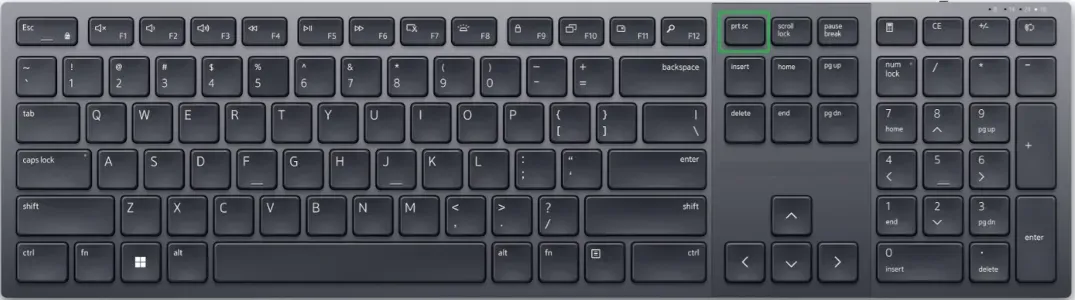
Look along the top row for a key marked prt sc, PrtScn or PrtScr. On a Dell laptop it is usually printed on F10; on a desktop keyboard it has a key of its own in the top-right corner. If neither has it, skip to no Print Screen key.
Shortcut: Print Screen
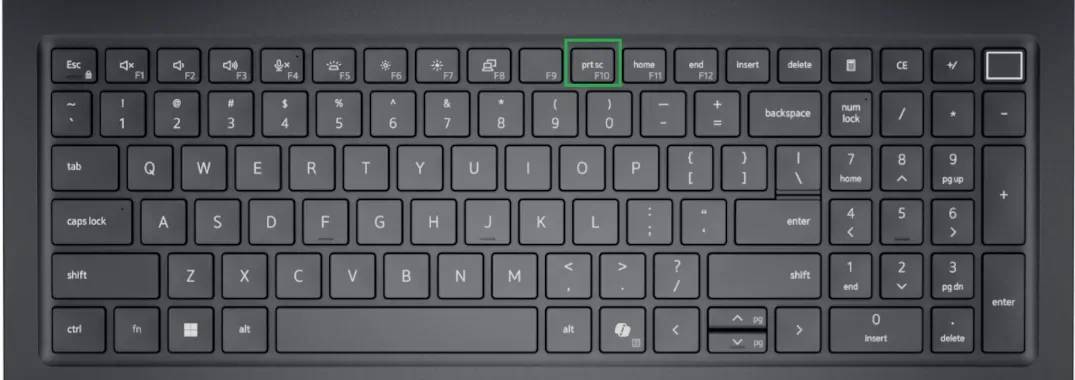
On this Dell laptop, Print Screen shares the F10 key. The outline is Dell’s.Image: Dell Checked 24 October 2026 against dell.com
Save the whole screen as a file
Press Windows + PrtSc. The screen dims for a moment and a PNG of everything on screen lands in Pictures › Screenshots, numbered in order. With two monitors, both go into one wide picture.
Shortcut: Windows + Print Screen
Checked 24 October 2026 against support.microsoft.com
Or choose just part of the screen
Press Windows + Shift + S. The screen greys over and a small bar at the top lets you pick a rectangle, a window, the full screen or a freehand shape. Drag over what you want; the picture is copied, and a preview appears in the corner that opens it in Snipping Tool to mark up and save.
Shortcut: Windows + Shift + S
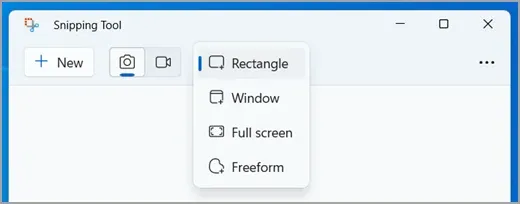
1 New. 2 Screenshot mode. 3 The shape of the capture: Rectangle, Window, Full screen or Freeform. Snipping Tool on Windows 11.Image: Microsoft Checked 24 October 2026 against support.microsoft.com
Capture only the window in front
Click the window you want, then press Alt + PrtSc. Only that window is copied, without the taskbar or anything behind it. Nothing is saved yet: open Paint, Word or an email and press Ctrl + V to paste it.
Shortcut: Alt + Print Screen
Checked 24 October 2026 against dell.com
Find or paste the screenshot
Windows + PrtSc files are in Pictures › Screenshots. On Windows 11, Snipping Tool also saves every snip there on its own. Anything taken with Alt + PrtSc, or with PrtSc alone on Windows 10, is only on the clipboard until you paste it with Ctrl + V and save.
Checked 24 October 2026 against support.microsoft.com
Where is the Print Screen key on a Dell?
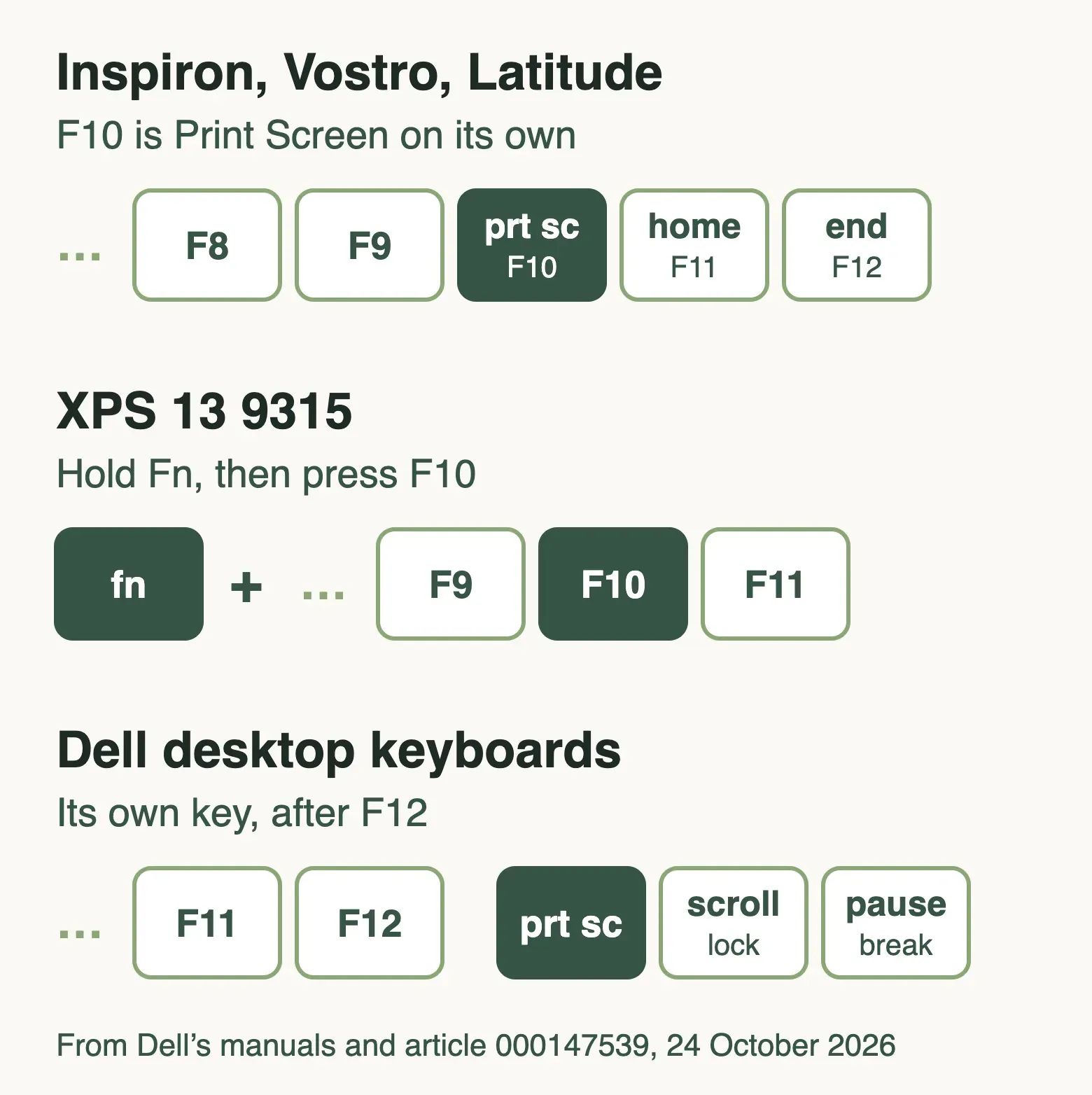
On current Inspiron, Vostro and Latitude laptops, Print Screen is printed on F10, and it is the key’s main job, so F10 alone takes the screenshot. Dell’s manuals say so for the Inspiron 15 3530, Vostro 15 3530 and Latitude 5450. On older and thinner models it sits on the Fn layer instead: the XPS 13 9315 manual lists Fn + F10 for screen capture.
The XPS 13 9340, 9345 and 9350 replace the function keys with a touch-sensitive strip. Their manuals, such as the XPS 13 9350’s, list Pause, Scroll Lock and System Request but no Print Screen, and Dell’s article says touch rows may need the function layer switched on first. On those models, Windows + Shift + S is the reliable way.
Model names are on the sticker under the laptop, or in Settings › System › About. If your keyboard looks different from the drawing, the keyboard-shortcuts page of your model’s manual on dell.com has the table.
- Inspiron, Vostro, Latitude (current): F10.
- XPS 13 with physical F keys (9315): Fn + F10.
- XPS 13 with a touch row (9340, 9345, 9350): no Print Screen listed; use Windows + Shift + S.
- Dell desktop keyboards: a separate key to the right of F12.
Do I need to press Fn on a Dell?
Shortcut: Fn + Escape
Only when Fn lock is on. Most Dell laptops ship with the top row set to media controls, such as volume and brightness, with Print Screen among them on F10. Pressing Fn + Esc flips the row so the keys send plain F1 to F12 instead, and then Print Screen needs Fn + F10.
If a screenshot key used to work and has stopped, press Fn + Esc once and try again. On Latitude models the same choice lives in the BIOS as Function Key Behavior, which IT departments sometimes set for the whole fleet.
Dell desktop keyboards and docks
OptiPlex and Inspiron desktops, and any Dell laptop on a dock with a full-size keyboard, have Print Screen as its own key above Insert, so no Fn is needed. Keyboards without the key, such as the Dell KM3322W, use Fn + Insert instead, according to Dell.
When a laptop is plugged into an external keyboard, the shortcut follows whichever keyboard you press it on. The laptop’s own F10 still works too.
Make Print Screen open the Snipping Tool on Windows 11
On an up-to-date Windows 11 Dell, Print Screen on its own opens the same capture bar as Windows + Shift + S, so you choose the area before anything is taken. On Windows 10, it copies the whole screen to the clipboard without a sound or a flash, which is why it can seem to do nothing.
To change it, open Settings › Accessibility › Keyboard and find the switch for the Print Screen key. Microsoft has worded it as Use the Print screen key to open screen capture and as Use the Print Screen button to open screen snipping; it is the same switch. Turn it off to get the old copy-the-whole-screen behaviour back, or on to pick an area every time.
How to take a screenshot on a Dell without the Print Screen key
Shortcut: Windows + Shift + S
Press Windows + Shift + S. It works on every Dell running Windows 10 or 11, needs no Print Screen key, and gives you the area, window or full-screen choice. It is the answer for XPS models with a touch row and for any keyboard where the key is worn or missing.
Without a keyboard shortcut at all, open Start, type Snipping Tool and select New. Or turn on the On-Screen Keyboard under Settings › Accessibility › Keyboard (Microsoft’s On-Screen Keyboard help has the steps) and select its PrtScn key with the mouse.
Dell tablets and 2-in-1s folded into tablet mode take a full-screen picture with the Windows button + Volume down, pressed together, according to Dell.
How to screen record on a Dell laptop
Shortcut: Windows + Shift + R
A Dell records video with the tools in Windows, as no Dell app adds a recorder. On Windows 11, press Windows + Shift + R, drag over the area and select Start; Snipping Tool saves an MP4 to Videos › Screen Recordings when you stop. The Windows 11 guide covers microphone and PC sound.
On Windows 10, Xbox Game Bar records one app at a time with Windows + Alt + R, but not the desktop or File Explorer. The Windows 10 guide explains the limits and two ways round them, and the all-Windows guide compares every built-in recorder.
Record your Dell’s screen and camera with Rescreen
Rescreen records in Chrome or Edge, so it is the same on an Inspiron at home and a locked-down Latitude at work, as long as the browser can share the screen. Choose your microphone and camera, then pick what to share. On Windows, Entire screen with Share with system audio on carries the computer’s sound; a single tab carries that tab’s sound; a single window carries your voice only.
Your camera sits in a round bubble in a corner, which suits a walkthrough for a colleague or a support ticket. When you stop, the video is already uploaded, the long pauses and false starts are cut, and you send one link. Check the devices first with the microphone test and the webcam test, and the Chrome guide explains the sharing box option by option.
Screenshots on a Dell Chromebook
Dell Chromebooks run ChromeOS, not Windows, so none of the keys above apply. Press Ctrl + Show windows for the whole screen, or Shift + Ctrl + Show windows to open Screen capture, which also records video. The Chromebook guide has the steps and pictures.
Send a screenshot or recording from a Dell
Screenshots are PNG files and are usually small enough to email. A recording is not: a few minutes of full-screen MP4 can pass most email limits. The video compressor shrinks it in the browser before you attach it.
If you take screenshots for bug reports, our guide to recording bug reports explains when a short video tells the developer more than a still picture. For a Lenovo or an Acer in the same office, the Lenovo guide and the Acer guide show where the Print Screen key is.
Snipping Tool or Rescreen
| Snipping Tool | Rescreen | |
|---|---|---|
| Audio | Recordings: microphone and PC audio, from Snipping Tool 11.2307. Screenshots have none. | Your microphone, plus the sound of a browser tab, or of the whole computer where your browser offers it. |
| Webcam | None. | Your camera in a round bubble over the screen, or the camera on its own. |
| Editing | Crop and mark up screenshots; trim video in Clipchamp. | Done when you stop recording: cuts mistakes, retakes, filler words and silences, zooms into what you do, reduces noise and levels your voice, speeds up still screens. |
| Length | No limit stated by Microsoft. | Up to five hours per recording, on the free plan. |
| Sharing | Files in Pictures › Screenshots and Videos › Screen Recordings that you send yourself. | A link anyone can watch without an account. |
| File format | PNG for screenshots, MP4 for recordings. | MP4 download in 4K, 2K or HD on Pro. |
| Cost | Free, part of Windows. | Free. Pro is $10 / month billed $120 yearly, or $20 monthly. |
What Snipping Tool can't do
- Print Screen alone, and Alt + Print Screen, copy to the clipboard only; nothing is saved until you paste.
- Windows + Print Screen always takes every monitor; for one screen or one area use Windows + Shift + S.
- Snipping Tool records video on Windows 11 only. On Windows 10, Game Bar records one app and never the desktop.
- Neither tool adds a webcam, cuts pauses or gives you a link to send.
- XPS models with a touch function row have no documented Print Screen key.
If it doesn't work
My Dell laptop won’t take a screenshot when I press F10
Fn lock is probably on, so F10 is sending a plain F10. Press Fn + F10, or press Fn + Esc once to switch the row back to its printed functions. On a Latitude, the Function Key Behavior setting in the BIOS may be fixed by IT.
Print Screen seems to do nothing
On Windows 10, and on Windows 11 with the Print Screen switch off, the key copies silently to the clipboard. Press Ctrl + V in Paint to see it, or use Windows + PrtSc, which saves a file and dims the screen so you know it worked.
Screenshots open in OneDrive or another app instead
OneDrive, Dropbox and some screenshot apps take over the Print Screen key. Turn off their screenshot option in the app’s settings, or close the app, and the key goes back to Windows.
There is no Print Screen key on my XPS
The XPS 13 9340, 9345 and 9350 use a touch row, and their manuals list no Print Screen. Use Windows + Shift + S, or open Snipping Tool from Start.
I can’t find the screenshots I took
Only Windows + PrtSc and Windows 11’s Snipping Tool save files, both to Pictures › Screenshots. If that folder is synced, it may be under OneDrive › Pictures › Screenshots instead. Clipboard captures were never saved and need taking again.
Questions people ask
How do I take a screenshot on a Dell?
Press Windows + PrtSc to save the whole screen to Pictures › Screenshots, or Windows + Shift + S to choose an area. On most Dell laptops PrtSc is on F10.
How do I take a Print Screen on my laptop?
Find the key marked prt sc, usually on F10 on a Dell, and press it with the Windows key to save a file. Hold Fn as well if the top row is locked to F1 to F12.
How do I take a screenshot on a Dell laptop without the Print Screen button?
Press Windows + Shift + S, then drag over the part you want. You can also open Snipping Tool from Start, or use the PrtScn key on the On-Screen Keyboard.
How do I screenshot with the Ctrl key?
Windows has no screenshot shortcut using Ctrl alone. Ctrl + V pastes a screenshot you copied with Print Screen, and in the Windows 10 Snipping Tool, Ctrl + PrtSc captures an open menu.
How do I screen record on my Dell laptop?
On Windows 11, press Windows + Shift + R and drag over the area. On Windows 10, press Windows + Alt + R to record one app with Game Bar, or use a browser recorder for the whole screen.
Why won’t my Dell laptop take a screenshot?
Usually Fn lock is on, so F10 needs Fn as well, or another app such as OneDrive has taken over Print Screen. Windows + Shift + S works either way.