How to screen record on Windows
On Windows 11, press Windows + Shift + R to open the Snipping Tool recorder, drag over the part of the screen you want and click Start. On Windows 10, open the app you want to record and press Windows + Alt + R to record it with Xbox Game Bar, which records one app at a time and never the desktop.
Step by step
Windows has two screen recorders built in, and which one you have depends on your version. Windows 11 has the Snipping Tool recorder, which records any part of the screen. Windows 10 and 11 both have Xbox Game Bar, which records one app. Check your version first.
Check which Windows you have
Press Windows + R, type winver and press Enter. The box that opens says Windows 11 or Windows 10, with the version number. You can also look in Settings › System › About.
Shortcut: Windows + R
Checked 24 October 2026 against support.microsoft.com
On Windows 11, open the Snipping Tool recorder
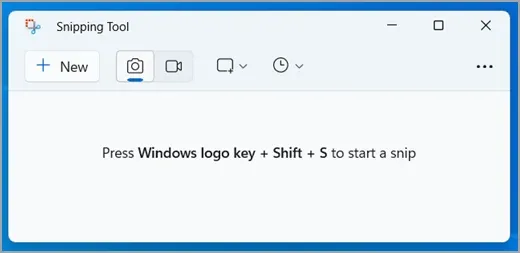
Press Windows + Shift + R. The screen dims and a recording bar appears at the top. Or open Snipping Tool from Start, select the video camera button to switch to recording, then select New.
Shortcut: Windows + Shift + R
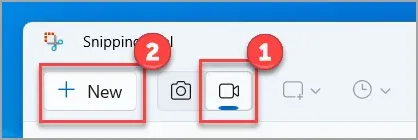
1 Switch to recording. 2 New, to choose the area. Numbers are Microsoft’s.Image: Microsoft Checked 24 October 2026 against support.microsoft.com
Choose the area and the sound, then click Start
Drag a box over the part of the screen to record; drag over the whole screen to record all of it. Before you start, the bar has a microphone button for your voice and a system audio button for the sound the computer plays. Turn on the ones you want, then select Start. A three-second countdown runs first.
Checked 24 October 2026 against blogs.windows.com
Stop and save the recording
Select Stop in the bar at the top of the screen. The recording opens in Snipping Tool to play back. Select the save button to keep a copy where you choose, or Edit in Clipchamp to trim it or add captions.
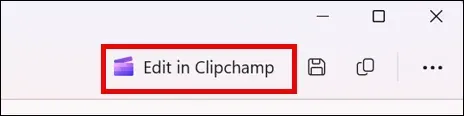
After you stop: Edit in Clipchamp, then save and copy.Image: Microsoft Checked 24 October 2026 against support.microsoft.com
On Windows 10, record an app with Game Bar
Open the app or game you want to record and click inside it. Press Windows + Alt + R to start recording, and the same keys again to stop. Windows + Alt + M turns your microphone on or off while it records. To see the controls, press Windows + G and use the Capture widget.
Shortcut: Windows + Alt + R
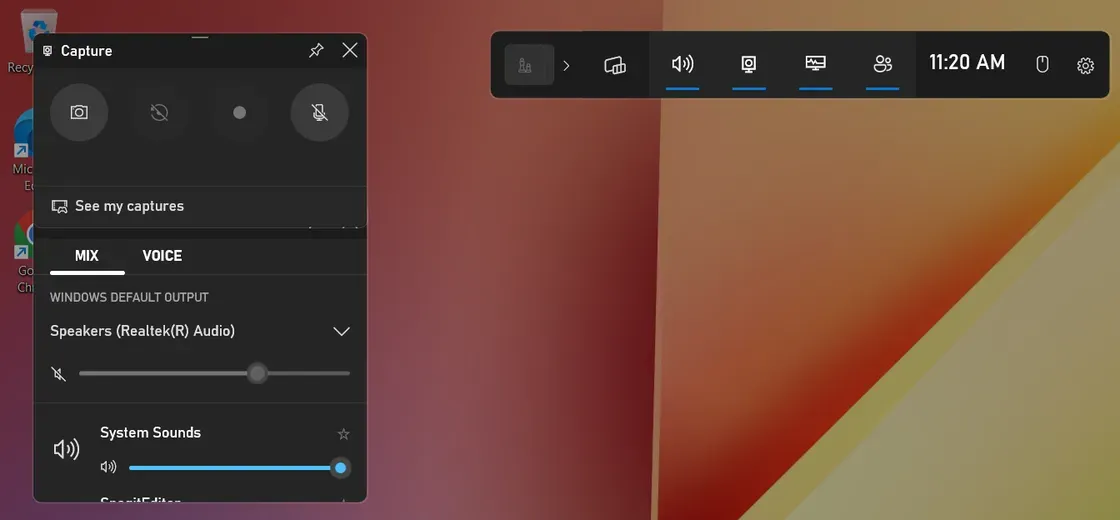
1 Capture, in the Game Bar strip. 2 Record, greyed out because only the desktop is open. 3 Microphone on or off. 4 See my captures. Windows 11, March 2024.Image: ASUS Checked 24 October 2026 against support.microsoft.com
Which tool for which Windows
Every route below is free and comes with Windows or with Microsoft 365. Pick by your version and by what you need to show:
- Windows 11, anything on screen: Snipping Tool. Any area or the whole screen, with your voice and the computer’s sound.
- Windows 10 or 11, one app or a game: Xbox Game Bar. One window only, never the desktop or File Explorer.
- Windows 10, the whole desktop: PowerPoint’s Screen Recording if you have Microsoft 365 or Office 2016 or later, or a browser recorder. The Windows 10 guide has both.
- Your camera on screen as well: Clipchamp, or a browser recorder such as Rescreen.
Windows 11: Snipping Tool
Snipping Tool is the screenshot app on Windows 11, and it records video too. Recording sound came in Snipping Tool version 11.2307, in September 2023: before that it recorded silent video, which is why older guides say it has no sound. If yours has no record button or no sound buttons, update Snipping Tool from the Microsoft Store. For still pictures on a laptop whose prt sc key needs fn, the HP guide and the Dell guide show the keys.
Recordings are MP4 files. From version 11.2405, Snipping Tool saves each recording on its own to Videos › Screen Recordings; turn that off under See more › Settings. There is no camera option and no editing beyond what Clipchamp adds.
For voice and computer sound in detail, how to tell them apart in a test take and how to fix a recording where one is missing, see the Windows 11 sound guide.
Windows 10 and 11: Xbox Game Bar, and why it cannot record the desktop
Game Bar was made for recording games, and it records the one app that has focus. It will not record the Windows desktop or File Explorer: open Game Bar with only the desktop in front and the record button is greyed out, and Windows + Alt + R does nothing. That is the usual answer to “Windows + Alt + R is not working”. Click inside an app first, then press the keys.
Game Bar has to be turned on. Open Settings with Windows + I, search for Xbox Game Bar and make sure it is on. To record the sound of every app rather than just the one you are recording, open Game Bar, select Settings › Capturing and choose All. Recordings are MP4 files in Videos › Captures, named after the app and the time.
The longest recording is set under Settings › Gaming › Captures, two hours by default and up to four. If a menu or pop-up opens in a separate window, it may not appear in the recording, so test a short take first.
PowerPoint and Clipchamp
If you have PowerPoint for Microsoft 365, or PowerPoint 2016 or later, it records the whole desktop on Windows 10 or 11. On the Insert tab, select Screen Recording, then Select Area or Windows + Shift + B for the full screen, and Record. Windows + Shift + Q stops it. The recording lands on a slide; right-click it and choose Save Media as to keep it as an MP4. Sound and the pointer are on by default.
Clipchamp is Microsoft’s video editor. It comes with Windows 11 and is free from the Microsoft Store for Windows 10. Under Record & create, choose Screen or Screen and camera, then pick a tab, a window or the whole screen in the browser’s sharing box. Microsoft says sound from the computer is only recorded when you share a browser tab. The raw recording is a WebM file; export the project to get an MP4.
Where Windows screen recordings are saved
Each tool keeps its recordings in a different place. If you cannot find one, open File Explorer, go to Videos and look in both folders below before searching the whole computer.
A long full-screen MP4 can run to several gigabytes. The video compressor makes one small enough to email, the Discord video compressor fits a clip under Discord’s 20 MB limit, and the WebM to MP4 converter turns a Clipchamp or browser recording into a file every Windows app plays.
- Snipping Tool: Videos › Screen Recordings, as MP4, if automatic saving is on. Otherwise wherever you save it.
- Game Bar: Videos › Captures, as MP4. Change the folder under Settings › Gaming › Captures.
- PowerPoint: inside the presentation, until you use Save Media as.
- Clipchamp: your Downloads folder, as WebM for a raw recording or MP4 for an export.
Record in Chrome or Edge with Rescreen
Every built-in route ends with a file you then have to trim and send yourself, and only Clipchamp shows your camera. Rescreen records in Chrome or Edge on Windows 10 or 11 with nothing to install, and gives you a link to share. The Chrome guide explains what each choice in the share picker records.
Pick your microphone and camera, then choose an entire screen, a window or a tab in the browser’s sharing box. Sound works differently for each. Share the entire screen and turn on Share with system audio to include everything the computer plays. Share a tab and keep Share with tab audio on for that tab’s sound. A shared window carries no sound, only your microphone.
Check your camera and microphone with the webcam test and the microphone test first if Windows has more than one of either. When you stop, Rescreen cuts mistakes and long pauses, puts your camera in a round bubble over the screen, and lets you change any of it before you copy the link.
Snipping Tool (Windows 11) or Rescreen
| Snipping Tool (Windows 11) | Rescreen | |
|---|---|---|
| Audio | Microphone and system audio, from version 11.2307 (September 2023). | Your microphone, plus the sound of a browser tab, or of the whole computer where your browser offers it. |
| Webcam | None. | Your camera in a round bubble over the screen, or the camera on its own. |
| Editing | None in the app; Edit in Clipchamp for trims and captions. | Done when you stop recording: cuts mistakes, retakes, filler words and silences, zooms into what you do, reduces noise and levels your voice, speeds up still screens. |
| Length | No limit stated by Microsoft; bounded by free disk space. | Up to five hours per recording, on the free plan. |
| Sharing | An MP4 file you send yourself. | A link anyone can watch without an account. |
| File format | MP4. | MP4 download in 4K, 2K or HD on Pro. |
| Cost | Free, built into Windows 11. | Free. Pro is $10 / month billed $120 yearly, or $20 monthly. |
What Snipping Tool (Windows 11) can't do
- Snipping Tool is on Windows 11 only, has no camera option, and edits only through Clipchamp.
- Game Bar records one app at a time, never the desktop or File Explorer, and stops at its length limit.
- PowerPoint needs a Microsoft 365 or Office licence, and puts the recording inside a slide first.
- Clipchamp records computer sound only from a browser tab.
- Streaming apps and some protected videos record as a black box in every built-in tool.
If it doesn't work
Windows + Alt + R does nothing
Game Bar cannot record the desktop or File Explorer, so click inside an app first. If it still does nothing, turn Game Bar on in Settings (search for Xbox Game Bar), then press Windows + G once inside the app and try again.
The record button in Game Bar is greyed out
Game Bar has nothing it can record: only the desktop or File Explorer is in front. Open the app you want to record, click inside it and open Game Bar again. To record the desktop, use Snipping Tool on Windows 11 or PowerPoint on Windows 10.
The recording has no sound
In Snipping Tool, turn on the microphone or system audio button before you select Start; if there are no sound buttons, update it from the Microsoft Store. In Game Bar, check the microphone with Windows + Alt + M and set Capturing to All.
The recording is a black screen
Streaming apps and protected video block screen recording on purpose. For anything else, update the graphics driver from Windows Update, and in Game Bar record the app in a window rather than full screen.
Snipping Tool has no record button
You are on Windows 10, which has the older Snipping Tool without video, or Snipping Tool needs updating. On Windows 10 use Game Bar or PowerPoint; on Windows 11 update Snipping Tool from the Microsoft Store.
Questions people ask
How do I record my screen on my PC?
On Windows 11, press Windows + Shift + R, drag over the area and select Start. On Windows 10, click into the app you want and press Windows + Alt + R to record it with Game Bar.
How do you screen record on Windows 11?
Press Windows + Shift + R to open the Snipping Tool recorder, choose the area and the sound, and select Start. Select Stop at the top of the screen when you are done.
Why is Windows + Alt + R not working?
Because Game Bar records apps, not the desktop or File Explorer, and it has to be turned on in Settings. Click inside an app first, then press the keys again.
Does Windows have a built-in screen recorder?
Yes, two. Windows 11 has the Snipping Tool recorder for any part of the screen, and Windows 10 and 11 have Xbox Game Bar for recording one app.
How do I turn on screen recording in Windows 10?
Open Settings, search for Xbox Game Bar and turn it on. Then open the app you want to record and press Windows + Alt + R. For the whole desktop, use PowerPoint’s Screen Recording or a browser recorder.
How do you screen record?
On a Windows PC, use Snipping Tool (Windows + Shift + R) on Windows 11 or Game Bar (Windows + Alt + R) on Windows 10. In Chrome or Edge on any computer, a browser recorder works without installing anything.