How to screen record in Chrome
Chrome has no record button or shortcut: open a web recorder such as Rescreen, choose a tab, a window or your entire screen in Chrome’s share picker, and click Share. Leave Share with tab audio on for a tab’s sound, or use Command + Shift + 5 on a Mac or Windows + Shift + R on Windows 11 instead.
Step by step
Chrome records the screen only when a website asks it to share one. A web recorder makes that request, Chrome opens its share picker, and you decide what the site may see. The steps are the same in Chrome on Windows, macOS, ChromeOS and Linux; only the sound you can include differs.
Open a web recorder in Chrome
Go to a screen recorder that runs in the browser, such as Rescreen, and start a recording. It asks for your microphone and camera first, if you want them, then calls up Chrome’s share picker. Nothing is installed and no extension is added.
Checked 24 October 2026 against developer.chrome.com
Choose a Chrome tab, a window or the entire screen
The picker has three panes across the top: Chrome tab, Window and Entire screen. A site can suggest one, and Rescreen opens on Entire screen, but you choose. Click a tab in the list, or a window or screen thumbnail, to select it.
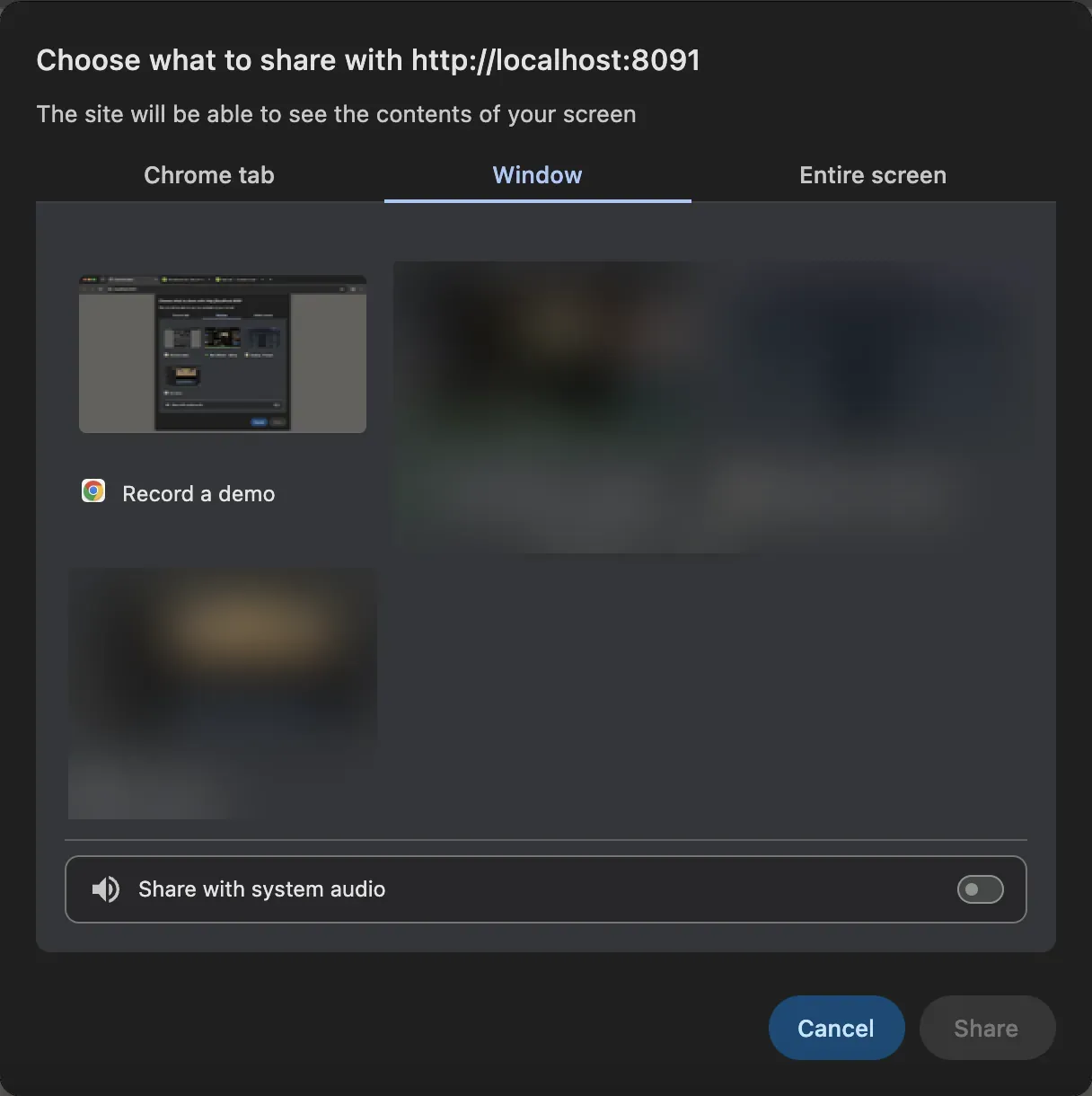
1 The three panes. 2 Each open window, with its title. 3 Share with system audio, off by default. Chrome 155 on macOS Sequoia 15.8; other windows are blurred. Checked 24 October 2026 against developer.chrome.com
Turn the sound on or off
At the bottom of the picker is a sound switch. On the Chrome tab pane it reads Share with tab audio and is on by default. On Window and Entire screen it reads Share with system audio and is off; it appears only where your system allows it. Your microphone is separate: the recorder asks for it, not this picker.
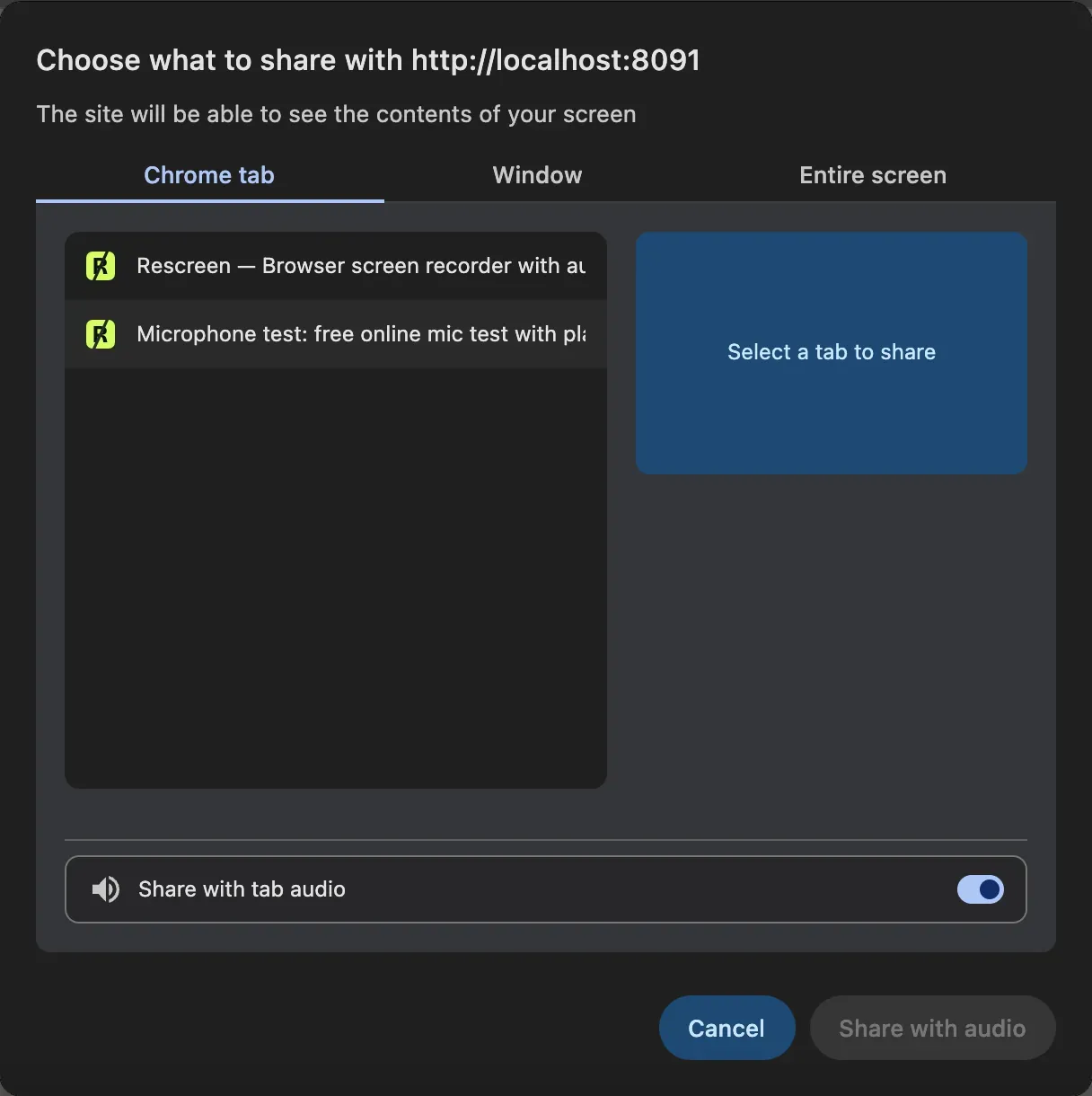
1 Chrome tab pane. 2 Your open tabs; the tab asking is left out. 3 Share with tab audio, on. 4 The button reads Share with audio while it is on. Chrome 155 on macOS Sequoia 15.8. Checked 24 October 2026 against developer.chrome.com
Click Share
Click Share (or Share with audio). Recording starts in the web recorder. When you share a tab, Chrome marks it with a coloured border and a bar along the top with Stop sharing; when you share a window or screen, a small Chrome bar says that the site is sharing your screen.
Checked 24 October 2026 against developer.mozilla.org
Stop the recording
Stop in the recorder, or click Stop sharing in Chrome’s bar. Closing a shared tab or window ends the share too. A web recorder then saves the take: Rescreen uploads as you go and gives you a link, others download a file.
Checked 24 October 2026 against developer.mozilla.org
Record a tab, a window or the whole screen
What you pick decides what viewers see, and what they do not. Choose by what you are showing, not by habit.
A tab is the tidiest choice for anything inside the browser: a web app, a slide deck in Google Slides, a dashboard. Other tabs, your bookmarks and notifications stay out of it, and it is the only choice that can carry that one tab’s sound on every system. Switch to another tab and the recording keeps showing the shared one; Chrome offers Share this tab instead when a site allows it.
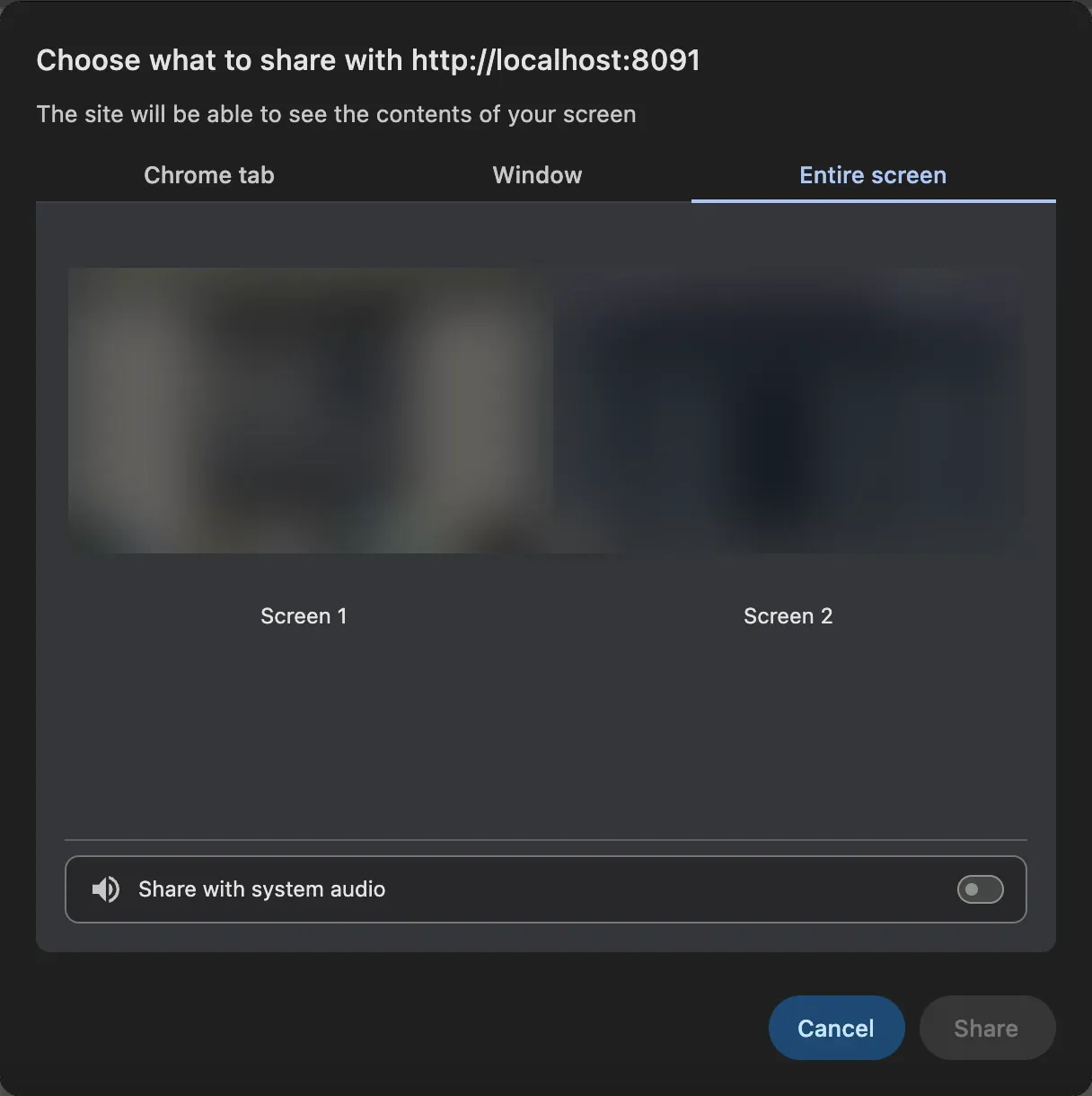
A window records one app, browser or not: a code editor, a spreadsheet, a design tool. Anything you drag over it is hidden, and menus that open outside it may not show. An entire screen records everything, including notifications, so turn on Do Not Disturb first. With two monitors, each screen is its own thumbnail.
- Chrome tab: one tab only. Sound: that tab’s, on every system.
- Window: one app’s window. Sound: on a Mac with Chrome 141 or later, the whole computer’s, not just that window’s; elsewhere often none.
- Entire screen: everything on one display. Sound: the whole computer’s on Windows, ChromeOS and a Mac with Chrome 141 or later; none on Linux.
Recording sound from a tab
To record a video, a call in Google Meet or anything else playing in a tab, share that tab and keep Share with tab audio on. Only that tab’s sound is recorded, so a notification chime or music in another app stays out. You still hear the tab while it is shared.
For sound from outside Chrome, such as a desktop app or a game, share the entire screen and turn on Share with system audio. On Windows and ChromeOS that records everything the computer plays. On a Mac it needs Chrome 141 or later, macOS Sonoma 14.2 or later, and permission under System Settings › Privacy & Security › Screen & System Audio Recording; the Mac computer audio guide covers the other routes. On Linux, Chrome shares tab sound only; the Linux guide covers the recorders that capture the rest.
Your own voice comes from the microphone, which the recorder asks for separately. If it is quiet or missing, run the microphone test before you record.
Chrome extensions: what to check before installing one
Search the Chrome Web Store for “screen recorder” and you get pages of extensions. They record through the same Chrome machinery as a web recorder, but they stay installed, and many ask for Read and change all your data on all websites. That permission lets an extension see every page you open, including your email and bank, for as long as it is installed.
A web recorder asks each time instead: Chrome shows the picker, you choose what to share, and the site sees nothing once you click Stop sharing. If you do install an extension, check these first:
- The permissions on its Web Store page, under Privacy practices, and whether it needs access to every site.
- Who publishes it, when it was last updated, and recent reviews, not just the star rating.
- Where recordings go: kept on your computer, or uploaded to the maker’s servers, and for how long.
- Limits on the free version: a watermark, a five or ten-minute cap, or exports locked behind payment.
Firefox and Edge
Microsoft Edge is built on the same engine as Chrome, so its picker is the same three panes and the same sound switches: tab sound everywhere, system sound when you share the screen on Windows. On Windows 11 the Snipping Tool recorder is the built-in alternative.
Firefox asks in a panel under the address bar, with a menu of windows and screens to choose from. It has no tab choice and shares no sound at all: a Firefox screen recording carries only your microphone, which the recorder asks for on its own. Firefox has no recorder built in either.
Safari on a Mac shares a window or a screen with no computer sound. Rescreen works in Chrome, Edge and Safari; in Firefox, open it in Chrome or Edge instead.
Your computer’s own recorder, outside Chrome
Every desktop system has a recorder of its own, and each records Chrome like any other window. Use one when you need a file on your disk rather than a link, or when you are offline.
- Windows 11: Snipping Tool, Windows + Shift + R. See screen recording on Windows 11.
- Windows 10: Xbox Game Bar, Windows + Alt + R, for one app at a time. See screen recording on Windows 10, or the guide to every Windows version.
- Mac: the Screenshot toolbar, Command + Shift + 5. See screen recording on a Mac.
- Chromebook: Screen capture, Ctrl + Shift + Show windows. See screen recording on a Chromebook.
Chrome on a phone or tablet
Chrome on Android cannot share the screen with a website, so no web recorder works there. Use the phone’s own recorder: on most Android phones, Screen record in Quick Settings, swiped down from the top of the screen. On an iPhone or iPad, add Screen Recording to Control Center in Settings, then tap it.
Record in Chrome with Rescreen
Rescreen is a recorder that runs in Chrome, so the picker above is all there is to set up. Choose your microphone and camera, click record, then pick what to share; the picker opens on Entire screen.
While it records, the recording page stays in front, with the time and a stop button. When you stop, the take is already uploaded. Rescreen takes out the stumbles and long silences and places your camera in a round bubble over the screen; in the editor you can put back any cut. Then copy the link and send it.
Tab sound and system sound come through exactly as the picker allows, so the comparison below holds for Rescreen too. A long file is not a problem, but if you also want a copy small enough to email, the video compressor shrinks a download in the browser. Check the camera with the webcam test first if you are not sure which one Chrome will use.
Chrome alone or Rescreen
| Chrome alone | Rescreen | |
|---|---|---|
| Audio | Tab sound for a tab; system sound for a screen on Windows, ChromeOS and Mac. | Your microphone, plus the sound of a browser tab, or of the whole computer where your browser offers it. |
| Webcam | Only if the recorder adds it. | Your camera in a round bubble over the screen, or the camera on its own. |
| Editing | None in Chrome; depends on the recorder. | Done when you stop recording: cuts mistakes, retakes, filler words and silences, zooms into what you do, reduces noise and levels your voice, speeds up still screens. |
| Length | Set by the recorder, not Chrome. | Up to five hours per recording, on the free plan. |
| Sharing | Depends on the recorder: a file to download or a link. | A link anyone can watch without an account. |
| File format | Usually WebM or MP4, chosen by the recorder. | MP4 download in 4K, 2K or HD on Pro. |
| Cost | Chrome is free; recorders vary. | Free. Pro is $10 / month billed $120 yearly, or $20 monthly. |
What Chrome alone can't do
- No record button, menu item or shortcut: Chrome records only for a site or extension that asks.
- Tab sound only for a shared tab; system sound only where the system allows it, never on Linux.
- A shared window hides anything dragged over it, and menus outside the window may not show.
- Protected video, such as Netflix or Disney+, records as a black box.
- No recording at all in Chrome on Android: a phone needs its own recorder.
If it doesn't work
There is no Share with tab audio switch
You are on the Window or Entire screen pane, which offers system audio at most. Click the Chrome tab pane and pick the tab that is playing the sound.
The recording is black, or shows only the desktop wallpaper
On a Mac, turn Google Chrome on in System Settings › Privacy & Security › Screen & System Audio Recording, then quit and reopen Chrome. A black box only over a film is DRM and cannot be recorded.
The share picker never appears
A work or school Chrome can have screen sharing turned off: open chrome://policy and look for ScreenCaptureAllowed. Otherwise check you are on desktop Chrome, not the phone app, and reload the page.
The video has my voice but not the computer’s sound
Share a tab with Share with tab audio on, or share the entire screen with Share with system audio on. A shared window often carries no sound.
The recording stopped by itself
The shared tab or window was closed, or someone clicked Stop sharing. On a Mac with an almost full disk, macOS can also end the share; free some space and record again.
Questions people ask
How do I record on Google Chrome?
Open a web recorder such as Rescreen, start a recording, pick a Chrome tab, a window or the entire screen in Chrome’s picker and click Share. Stop it in the recorder or with Stop sharing.
Does Chrome have a built-in screen recorder?
No. Chrome has a share picker that websites and extensions use to record, but no record button of its own. Chromebooks have Screen capture in ChromeOS, which is part of the system rather than the browser.
How do I add a screen recorder in Chrome?
You do not have to add anything: a web recorder runs in a normal tab. If you want an extension, install it from the Chrome Web Store and check its permissions first.
What is the best screen recording software?
It depends on the job. For a quick file, your computer’s own recorder is enough. For a video you will send to someone, a recorder that cuts mistakes and gives you a link, such as Rescreen, saves the editing and uploading.
Is there an online screen recorder that can be used on mobile devices?
Not in practice. Chrome on Android cannot share the screen with a website at all, and online recorders are built for computers. On a phone, use its own recorder in Quick Settings or Control Center.
How do I activate my screen record?
In Chrome, start a recording in a web recorder and click Share in the picker. On a computer without a browser recorder, use Windows + Shift + R on Windows 11, Command + Shift + 5 on a Mac, or Ctrl + Shift + Show windows on a Chromebook.