How to screen record on Linux
On Ubuntu, Fedora and other GNOME desktops, press Print Screen, press V to switch to video and click the red button; click the timer in the top bar to stop, and the video is in Videos › Screencasts. On KDE Plasma 6, press Meta + Alt + R to record the whole screen with Spectacle, and the same keys again to stop.
Step by step
Linux has no single recorder, because the desktop provides it, not the kernel. These steps are for GNOME 42 and later, the desktop on Ubuntu 22.04 onwards and Fedora Workstation 36 onwards, checked on Ubuntu 26.04 LTS with GNOME 50. KDE Plasma is further down.
Open the screenshot bar
Press Print Screen, or open the system menu at the top right and select the screenshot button. The screen dims and a bar appears at the bottom with a box marking the area to capture.
Shortcut: Print Screen
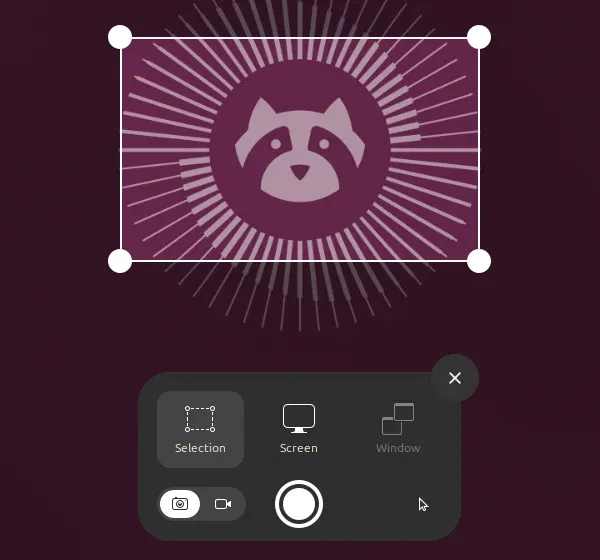
1 What to capture: Selection, Screen or Window. 2 The switch between a picture and a video. 3 The capture button. GNOME 50 on Ubuntu 26.04. Checked 24 October 2026 against help.gnome.org
Switch to video
Press V, or click the video camera at the left of the bar. The capture button turns red. Ctrl + Shift + Alt + R opens the bar straight in video mode instead of Print Screen.
Shortcut: V
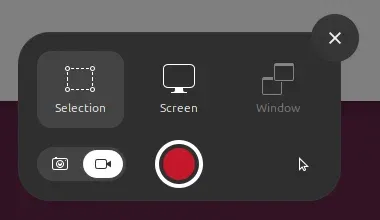
1 Video mode is on. 2 Screen records the whole display; Window is greyed out for video. 3 The red button starts the recording. Checked 24 October 2026 against help.gnome.org
Choose Screen or an area
Select Screen for a whole display, or keep Selection and drag the handles around the part you want. Window is greyed out in video mode: GNOME records a screen or an area, not a single window. The pointer button at the right shows or hides the mouse pointer in the video.
Checked 24 October 2026 against help.gnome.org
Start recording
Click the big red button. The bar disappears and a red timer appears in the top bar, counting the seconds. There is no countdown, so the first second shows the bar closing.
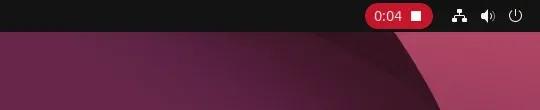
1 While it records, a red timer sits in the top bar. Click it to stop. Checked 24 October 2026 against help.gnome.org
Stop and find the file
Click the red timer in the top bar. The video saves on its own to Videos › Screencasts in your home folder, named Screencast From with the date and time, as a WebM file. There is no save box and no preview.
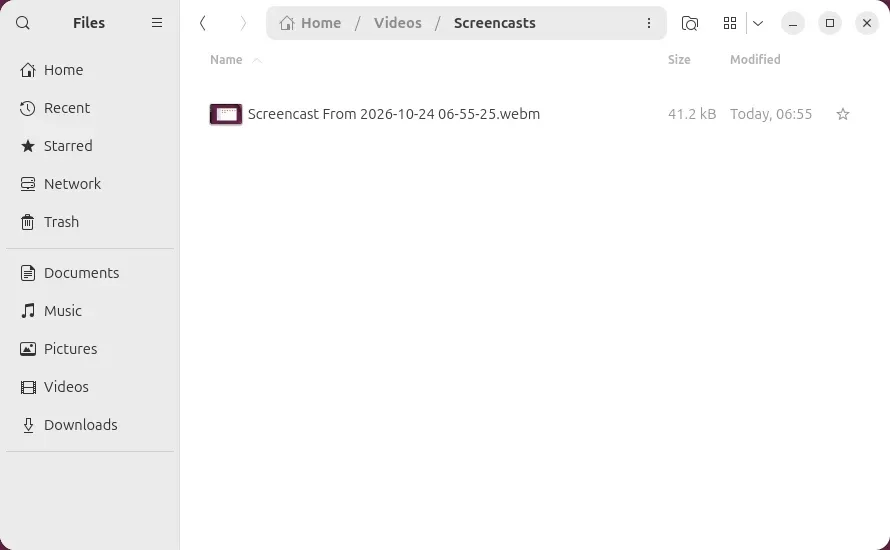
1 The recording, saved on its own to Videos › Screencasts and named with the date and time. Checked 24 October 2026 against help.gnome.org
GNOME screenshot and recording shortcuts
Shortcut: Control + Shift + Alt + R
Most of the bar has a key, which helps when you record the same thing more than once. These are the defaults on GNOME 50, read from the machine itself; you can change them under Settings › Keyboard › View and Customize Shortcuts › Screenshots.
- Print Screen: open the bar for a picture.
- Ctrl + Shift + Alt + R: open the bar in video mode.
- Shift + Print Screen: save a picture of the whole screen at once.
- Alt + Print Screen: save a picture of the window in front.
- In the bar: S selection, C screen, W window, P pointer on or off, V picture or video, Enter capture.
Ubuntu 20.04 and older GNOME: the 30-second limit
GNOME 41 and older, which includes Ubuntu 20.04, have no recording bar. Ctrl + Alt + Shift + R starts recording the whole screen straight away, a red dot shows in the top bar, and the same keys stop it. The file goes to Videos.
Those versions also stop every recording after 30 seconds, set by a hidden setting called max-screencast-length. To lift it, open a terminal and run gsettings set org.gnome.settings-daemon.plugins.media-keys max-screencast-length 0; 0 means no limit. GNOME 42 removed both the limit and the setting.
KDE Plasma: record with Spectacle
Shortcut: Meta + Alt + R
On KDE Plasma 6 (Kubuntu 25.04 and later, KDE neon, Fedora KDE 40 and later), the screenshot app Spectacle records too. Press Print Screen and Spectacle shows a bar at the bottom of the screen; select New Recording, then Rectangular Region, Full Screen or Window. Unlike GNOME, it can record one window.
The shortcuts skip the bar: Meta + Alt + R records the whole screen, Meta + Shift + R an area and Meta + Ctrl + R a window. Meta is the key with the Windows logo on most keyboards. Press the same keys again to stop.
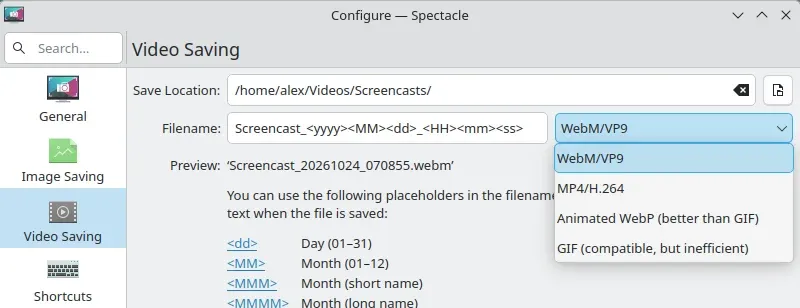
Recordings save to Videos › Screencasts as WebM files. Under Configure Spectacle › Video Saving you can switch to MP4, animated WebP or GIF. Spectacle has no sound setting, so its recordings are silent too.
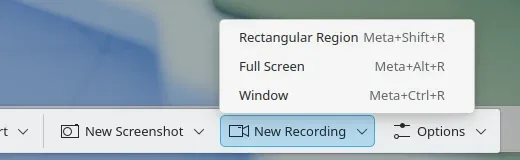
Change where Spectacle saves, and the format
Open Spectacle from the app menu, select Configure Spectacle… and go to Video Saving. The folder, the file name pattern and the format are all there. MP4 is the safer choice if the video is going to someone on a phone or a Mac, where WebM does not always play.
How to record your screen with sound on Linux
Neither built-in recorder records any sound: the WebM that GNOME 50 saved on our test machine had no sound track at all, and Spectacle has no sound option. For your voice or the computer’s sound you need another app.
Kooha is the closest to the built-in tool: one window, a record button, and a choice of microphone, desktop sound or both, saved as WebM, MP4, GIF or Matroska. It works on Wayland and installs from Flathub.
OBS Studio takes more setting up but handles anything: several sound sources, your camera, scenes. Since version 27 it captures a Wayland screen with its Screen Capture (PipeWire) source; the older X11 capture sources show a black picture on Wayland.
SimpleScreenRecorder is still recommended in old forum threads, but its author states it does not support Wayland. It works only in an X11 session, and Ubuntu 26.04 no longer offers one.
Wayland and X11: why some recorders show a black screen
Most current Linux desktops run on Wayland, which does not let one app read another app’s windows. On X11, the older system, any program could. That is why a recorder written for X11 gives a black video, or only the mouse pointer, on Wayland: it is asking for pictures the desktop will not give it.
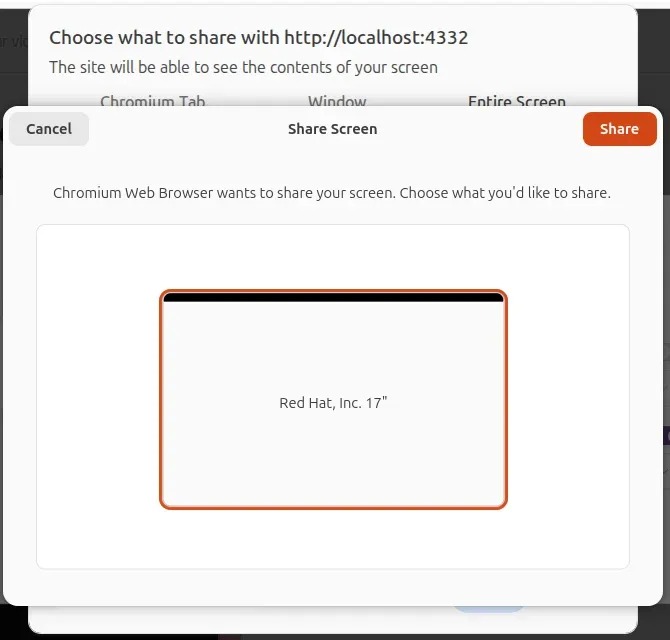
Wayland apps ask instead, through the screen-sharing portal. The desktop shows its own Share Screen box, you choose a screen or window, and only then does the app see it. Browsers, OBS and Kooha all use it, which is why a second box appears after the app’s own one.
To see which you are running, open a terminal and type echo $XDG_SESSION_TYPE: it answers wayland or x11. Ubuntu 26.04 offers Wayland only; Ubuntu 22.04 and 24.04 still have Ubuntu on Xorg on the cog at the sign-in screen, which is the fallback if an old app has to run.
Record in Chrome or Firefox on Linux
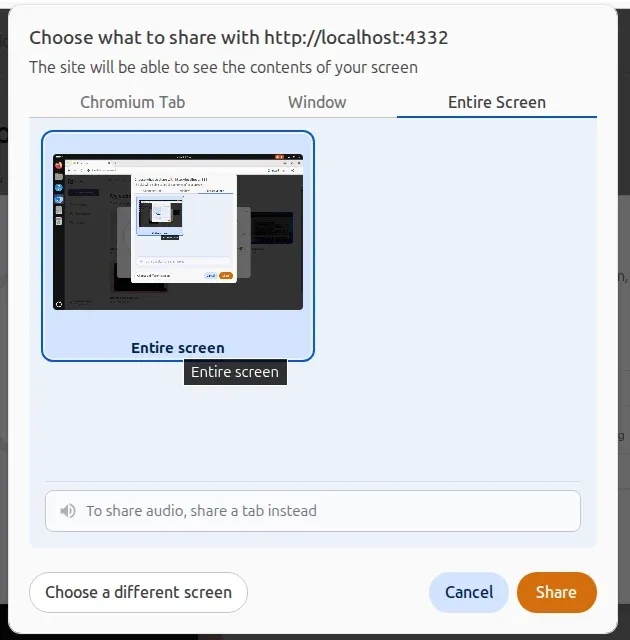
Browsers record through a website that asks to share your screen. On Linux, Chrome and Chromium show their usual share box with Tab, Window and Entire Screen, and on Wayland the desktop’s Share Screen box follows. Sound is the catch: Chrome shares a tab’s sound, but a window or the entire screen carries none on Linux. The share box says so, To share audio, share a tab instead.
Firefox asks in a panel under the address bar, and on Linux, as everywhere, it shares no sound at all; a recording carries only your microphone. The Chrome guide explains every option in the share box.
Record your screen and camera on Linux with Rescreen
Rescreen runs in Chrome or Chromium on Linux, with nothing to install, so it is the same on Ubuntu, Fedora or Arch and on GNOME or KDE. We tested it in Chromium 156 on Ubuntu 26.04: choose your camera and microphone, select Choose screen and start, pick Entire Screen or a window in Chromium’s box, then confirm in the desktop’s Share Screen box.
Your voice comes from the microphone. On Linux the computer’s sound is only recorded from a shared Chrome tab, so share the tab when the sound is a video or a web app, and the screen when it is not. Firefox is not supported: in our test a recording in Firefox 158 never finished uploading.
When you stop, the video is already uploaded, the long pauses are cut, and you send one link instead of a WebM file. Check the devices first with the microphone test and the webcam test, or start from the free screen recorder.
Is there a command to screen record on Linux?
On X11, yes: ffmpeg records the screen with ffmpeg -f x11grab -i :0.0 out.mp4. On Wayland that only captures a black or empty picture, for the same reason as the X11 apps above. Wayland has no one command that works on every desktop: wf-recorder works on Sway and other wlroots desktops but not on GNOME or KDE, where the shortcut, Kooha or OBS is the answer.
How to take a screenshot on Linux
Shortcut: Shift + Print Screen
On GNOME, Print Screen opens the same bar in picture mode; drag over an area or choose Screen or Window, then press Enter. The picture is copied to the clipboard and saved to Pictures › Screenshots. Shift + Print Screen takes the whole screen at once and Alt + Print Screen the window in front.
On KDE, Print Screen opens Spectacle, which lets you draw arrows, boxes and text on the picture before you save it, so there is little reason to install another screenshot app. Shift + Print Screen takes the whole desktop and Meta + Print Screen the active window.
GNOME screen recorder or Rescreen
| GNOME screen recorder | Rescreen | |
|---|---|---|
| Audio | None. | Your microphone, plus the sound of a browser tab, or of the whole computer where your browser offers it. |
| Webcam | None. | Your camera in a round bubble over the screen, or the camera on its own. |
| Editing | None. | Done when you stop recording: cuts mistakes, retakes, filler words and silences, zooms into what you do, reduces noise and levels your voice, speeds up still screens. |
| Length | No limit from GNOME 42; 30 seconds by default before that. | Up to five hours per recording, on the free plan. |
| Sharing | A file in Videos › Screencasts that you send yourself. | A link anyone can watch without an account. |
| File format | WebM. | MP4 download in 4K, 2K or HD on Pro. |
| Cost | Free, part of GNOME. | Free. Pro is $10 / month billed $120 yearly, or $20 monthly. |
What GNOME screen recorder can't do
- No sound at all, from the microphone or the computer, in GNOME’s recorder or Spectacle.
- GNOME records a screen or an area, never a single window.
- WebM files by default, which some phones and Mac apps will not play.
- GNOME 41 and older stop after 30 seconds unless you change a hidden setting.
- No camera, no editing and no link to send: you get a file in Videos › Screencasts.
If it doesn't work
My recording has no sound
GNOME’s recorder and Spectacle never record sound; it is not a setting you missed. Use Kooha or OBS for microphone and computer sound, or a browser recorder for your microphone plus a Chrome tab’s sound.
OBS or SimpleScreenRecorder records a black screen
You are on Wayland and the app is capturing the X11 way. In OBS, remove the source and add Screen Capture (PipeWire) instead. SimpleScreenRecorder cannot record Wayland at all; use Kooha or OBS, or sign in to an X11 session where your version of Ubuntu still has one.
The recording stops by itself after 30 seconds
You are on GNOME 41 or older, such as Ubuntu 20.04. Run gsettings set org.gnome.settings-daemon.plugins.media-keys max-screencast-length 0 in a terminal to remove the limit.
The browser’s share box is empty or never appears
The screen-sharing portal is missing or not running. Install xdg-desktop-portal with the package for your desktop (xdg-desktop-portal-gnome or xdg-desktop-portal-kde), then sign out and back in.
Spectacle says an error occurred while attempting to record the screen
We saw “Failed to select screen” in a virtual machine without graphics acceleration, where Spectacle cannot encode video. Turn on 3D acceleration in the virtual machine, or record with OBS. On real hardware, update the graphics driver.
Questions people ask
How do I screen record in Linux?
On GNOME, press Print Screen, press V and click the red button; click the timer in the top bar to stop. On KDE Plasma 6, press Meta + Alt + R to start and stop.
How do I record audio on Linux while recording the screen?
The built-in recorders do not record sound. Kooha records your microphone, the computer’s sound or both, and OBS Studio mixes any sources you add.
Why is Windows + Alt + R not working?
Windows + Alt + R is the Xbox Game Bar shortcut on Windows and does nothing on Linux. Use Ctrl + Shift + Alt + R on GNOME or Meta + Alt + R on KDE; on Windows, the Windows 10 guide explains why Game Bar refuses.
Is there a command to screen record on Linux?
On X11, ffmpeg -f x11grab records the screen from a terminal. On Wayland there is no command that works on GNOME and KDE; use the shortcut, Kooha or OBS.
How do I take a screenshot in Linux?
Press Print Screen. GNOME opens a bar to choose an area, a window or the screen and saves to Pictures › Screenshots; KDE opens Spectacle.
What is the best screenshot tool for Linux?
The one your desktop already has: GNOME’s screenshot bar is quickest, and KDE’s Spectacle adds arrows, boxes and text. For video with sound, Kooha and OBS are the usual picks.