Rescreen / Auto zoom screen recorder
Auto zoom screen recorder
Viewers see what you click and type, without you editing a single zoom.
How auto zoom works
Everything happens in one Chrome or Edge tab.
Record your screen
Share a tab, a window or the whole screen. As you record, Rescreen follows the cursor in the picture and notes where you click and type.
Stop, and the zooms are there
Each moment gets a zoom that eases in, follows the cursor and eases back out, with motion blur on the move. It is usually ready about half a minute after you stop.
Check it and share
The zooms are on the timeline. Change any of them, then send a link anyone can watch in their browser.
Zooms you can change
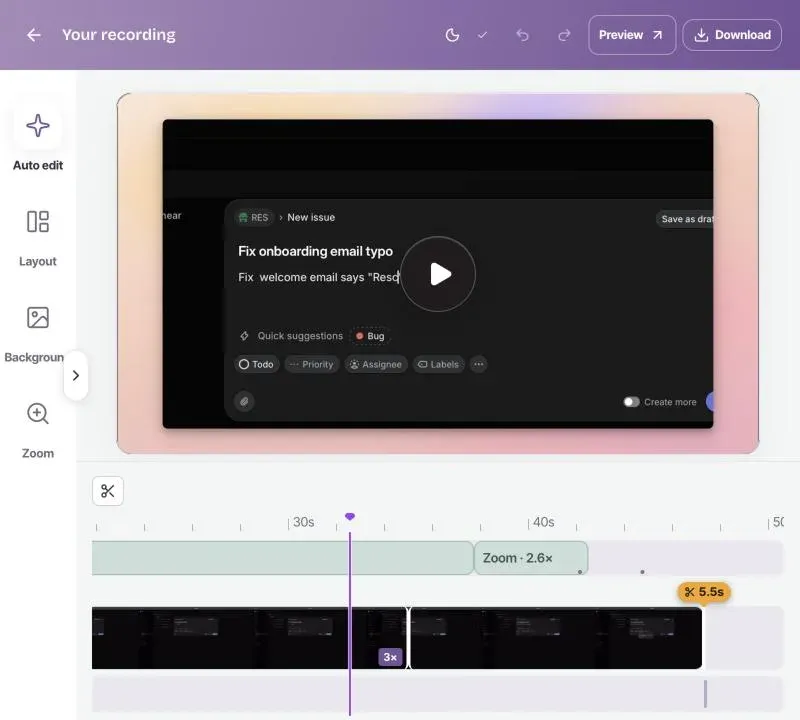
Every zoom Rescreen adds is a block on the timeline, and you have the last word on each one.
- Drag a zoom to move it, or drag its edges to make it longer or shorter
- Choose how far it goes in: 1.5×, 2×, 2.5× or 3×
- Click the picture to set what it zooms in on
- Remove one, or add your own at the playhead
The original recording is kept, so nothing you change is lost.
How to zoom in on a video
For a screen recording made in Rescreen. Most of it is done for you.
Record it in Rescreen
Press Start recording and show what you want to show. The zooms on your clicks and typing are added when you stop.
Add a zoom where you want one
Open the Zoom tab, move the playhead to the moment, press Add zoom, then click the part of the picture to zoom in on.
Set how long and how far
Drag the zoom's edges on the timeline and pick a level. The zoom transition in and out is eased for you.
Already have the video? Upload it and add zooms by hand the same way. Automatic zooms need a recording made in Rescreen, because the cursor is read while you record.
Compared with Screen Studio, FocuSee and Cursorful
Checked 12 November 2026 on each company's own site, in US dollars. Rescreen is our product.
| Feature | Rescreen | Screen Studio | FocuSee | Cursorful |
|---|---|---|---|---|
| Platform | Windows and Mac, in Chrome or Edge | Mac only | Windows and Mac | Chrome, Edge and Brave; Windows and Mac apps on Pro |
| Install | Nothing | Mac app | Desktop app | Browser extension |
| Auto zoom | Clicks and typing | Clicks | Clicks and typing | Clicks |
| Cuts retakes and filler words | Retakes, filler words and pauses, cut when you stop | Filler words and long pauses, in the editor | Filler words and silences, with AI credits on Advanced | Trim and split by hand |
| Share link | Yes | Yes | Yes | Yes |
| Price | Free; downloads on Pro, $10 / month billed yearly | $9 / month billed yearly, or $29 monthly | $4.17 / month on Standard, billed $49.99 yearly, or $19.99 monthly | Free for non-commercial use; Pro $79 once per person |
Sources: Screen Studio, FocuSee pricing, Cursorful and Rescreen pricing. More in Rescreen vs Screen Studio and eight Screen Studio alternatives.
More than zooms
The same stop also cuts your retakes, filler words and the dead time at each end, and speeds up long stretches where nothing moves. For a product demo or a tutorial, you open a finished video, not a project to clean up. See the free screen recorder for everything the automatic edit does.
Frequently asked questions
Is it free?
Yes. Auto zoom, the editor and sharing by link are free on every plan, with no card. Downloading the video needs Pro, at $10 a month billed $120 yearly, or $20 monthly.
Does it work on Windows?
Yes. Rescreen runs in Chrome or Edge, on Windows and on a Mac, and zooms the same way on both.
Do I need to install anything?
No. There is no app, extension or helper. Rescreen finds the cursor in the recording itself. You can record for up to 15 minutes without an account, then sign up to edit and share it; a recording is deleted after 3 days if you do not.
Can I change or remove a zoom?
Yes. In the Zoom tab, drag a zoom to move it, drag its edges to change how long it lasts, pick 1.5×, 2×, 2.5× or 3×, click the picture to set its centre, or remove it. You can also add your own.
Does it work on a video I already recorded?
Not automatically. Auto zoom only works on recordings made in Rescreen, because it reads the cursor while you record. If you upload a video, you can add zooms to it by hand in the editor.
Can I zoom in on part of a video?
Yes. Add a zoom at the moment you want, set how far in it goes, and click the part of the picture to zoom in on. The video eases in to it and back out.
How is it different from Screen Studio?
Screen Studio is a Mac app that records the real mouse, so it can also smooth and enlarge the cursor. Rescreen runs in the browser on Windows and Mac, and also cuts retakes, filler words and pauses when you stop. Rescreen cannot redraw the cursor.
Tools for your next recording
Record with auto zoom.
Your clicks and typing are zoomed in when you stop.
No credit card required