Screen Recording for Bug Reports: Capture a Reproducible Failure
Published by Rescreen, which makes one of the products discussed. How we source and update these guides.
A useful screen recording for a bug report shows the starting state, the action that triggers the problem and the actual result in one understandable sequence. Add written reproduction steps, the expected result and the relevant environment details. The video shows what happened; the written report lets someone repeat it without replaying every frame.
Keep the original recording, make important labels readable and preserve any wait that is part of the failure. A polished edit can accidentally remove the evidence a developer needs. This guide is for reporting a software problem, rather than making a general tutorial video. Its example and checklist are reusable reporting exercises, not results from a tested application.
Decide what the recording needs to prove
Before recording, finish this sentence: “When I do this action from this state, I see this result instead of that result.” If you cannot name the starting state, capture enough setup to discover it. If you cannot name the expected result, explain which requirement, previous behavior or visible instruction led you to expect something different.
A video is particularly useful for a disappearing message, a layout shift, a sequence of clicks or an interaction that is difficult to describe. It is less useful as the only evidence of an invisible API error. A picture of a spinner does not establish whether the cause is a server failure, a blocked request or a client-side problem. Keep that distinction in the report.
Mozilla’s bug-writing guidelines ask for precise steps and separate actual and expected results, with observations distinguished from speculation. Use that structure beside the video. Describe what you observed before proposing a cause, and state whether you can reproduce it consistently or only occasionally.
Choose one failure for the report. If a second symptom appears during the same sequence, mention its relationship, but do not turn the recording into a tour of unrelated issues. A clear title such as “Saving a changed notification setting reverts it after reopening” gives the recipient a more useful starting point than “Settings broken.”
Prepare a repeatable starting state
Write the setup before pressing record: app or build version, operating system, browser version when relevant, account role, starting page and sample data. Include details that can change the outcome. An administrator and a read-only user may see different controls; a new workspace and an existing one may have different defaults.
- Use safe sample data. Prefer a test workspace or harmless file that reproduces the problem. Close unrelated tabs, notifications and private documents before sharing your screen.
- Identify the starting state. Note which setting is enabled, which item is selected and whether the page was freshly loaded. Keep a reset procedure for another attempt.
- Frame the useful area. Include the control, any message and the resulting state. Enlarge small labels before capture; the resolution guide explains why a large video file can still contain unreadable text.
- Check the saved sample. Record a few seconds and play it back. Confirm the right window is visible and any narration is audible. Camera video is optional and should not cover evidence.
Do not change several conditions just to make a cleaner demonstration. Clearing storage, switching accounts or disabling an extension may remove the condition that caused the failure. If you try one of those changes, record it as a separate diagnostic attempt. Preserve the original conditions in your notes so the recipient can distinguish reproduction from troubleshooting.
For sensitive problems, decide the reporting destination before capturing. A private support channel may be appropriate where a public issue is not. If a secret appears in the recording, stop and make a safe replacement or follow your team’s redaction process. A description saying “ignore the token” does not remove it from the video.
Record one continuous reproduction attempt
Start before the triggering action. Hold the initial screen long enough to identify the relevant state, perform the smallest known sequence, and leave the failure visible long enough to read. Stop after you have shown the result and any essential follow-up, rather than continuing into unrelated exploration.
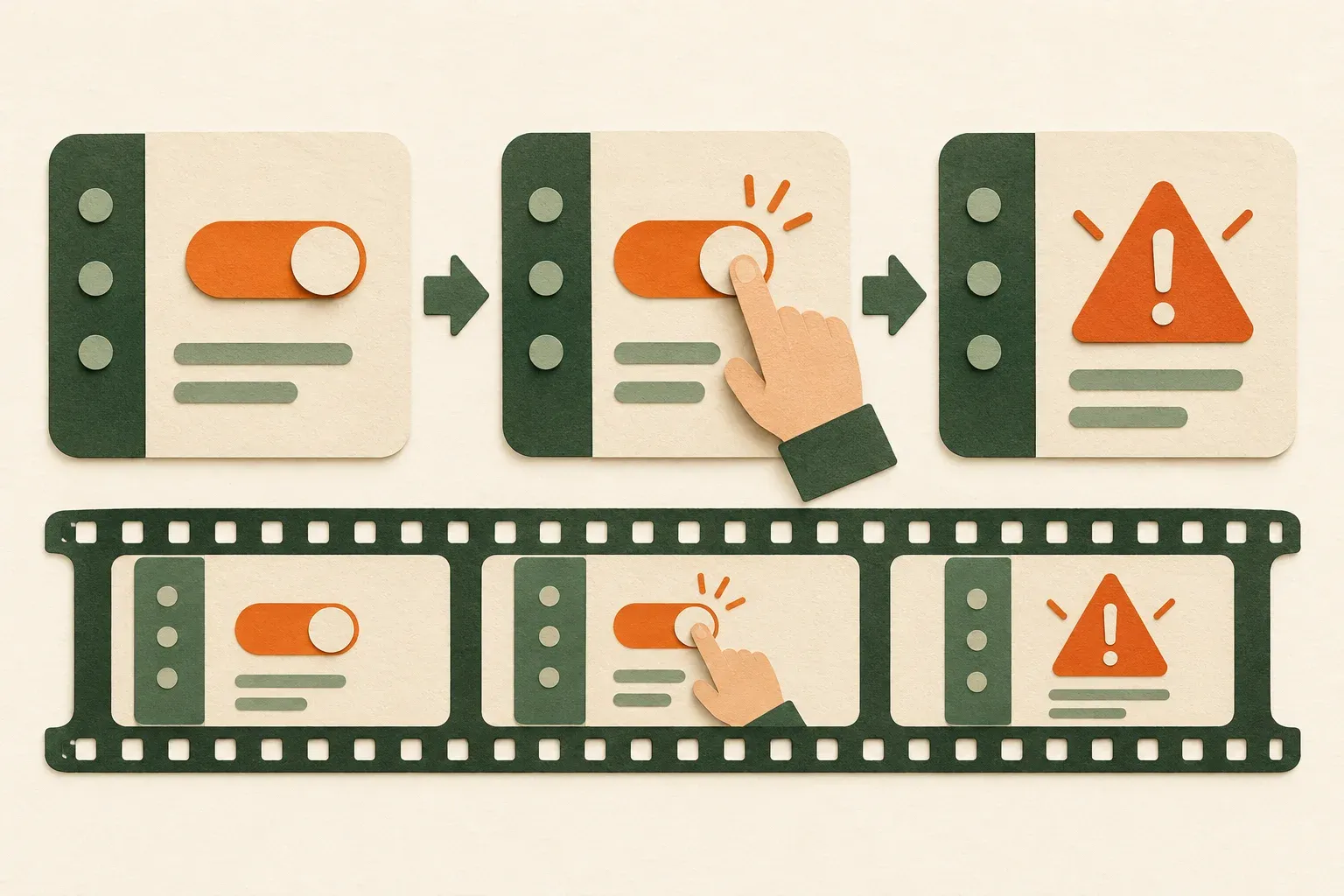
Narrate actions that are not obvious from the picture. Say which keyboard shortcut you used, whether you clicked once or twice, and what you expected. Keep observations concrete: “The spinner remains visible” is stronger evidence than “The database is dead.” If narration is unavailable, put those details in numbered steps next to the recording.
For an intermittent issue, keep a simple attempt log. Record the conditions, whether each attempt failed and which recording corresponds to it. Do not write “always” because the one clip you kept happens to show a failure. Report the attempts you actually made, and distinguish “not reproduced in this attempt” from “fixed.”
If the problem is a crash or freeze, explain where the capture stops. The recording may end because the capture process or operating system stopped, not because the application completed an action. Add any relevant crash report or diagnostic identifier through the project’s approved channel. Do not infer a technical cause from the final visible frame alone.
A worked example: a setting that does not stay saved
Imagine a fictional app with a Weekly summary setting. The reporter turns it on, sees a saved message, leaves the panel and finds it off on return. This invented example illustrates a complete report; it is not a claim about a Rescreen bug or any customer’s experience.
| Part | What to include |
|---|---|
| Starting state | A test workspace, editor role, Weekly summary off, Notifications panel open. |
| Steps | Turn Weekly summary on. Save. Wait for the confirmation. Leave Notifications, then reopen it. |
| Expected result | The setting remains on after reopening the panel. |
| Actual result | The saved confirmation appears, but the setting is off when the panel reopens. |
| Evidence | One continuous clip showing the original state, switch, confirmation and reopened panel; environment details recorded separately. |
The confirmation and the reopened state both matter. A clip beginning with the switch already off does not show that a save was attempted. A clip ending at the confirmation does not show the failure. Keeping those moments together helps the recipient evaluate the report without assuming a hidden step.
Add timestamps after reviewing the final evidence file, rather than guessing them during recording. Reference the switch change, confirmation and reopened panel. If you later trim the beginning, recalculate the timestamps against the version you actually attach. Keep filenames distinct so a teammate does not follow timestamps from a different edit.
Preserve waits, retries and the original capture
For a bug report, “dead time” can be the most important part. A long wait, a repeated request or a delayed error may explain the failure. Removing that interval can change what the recording appears to show. Keep an unmodified source and label any edited copy, including whether timing or framing changed.
Trim unrelated setup only when the starting conditions remain clear. Avoid cutting between the triggering action and its result. If a long recording needs a short preview, keep the original available and point to the relevant interval. A timestamped note can save viewing time without changing the evidence.
Automatic silence removal, retake removal, speed changes and zooms deserve a separate review. A repeated action might be a retry, not a mistake. A silent screen may be a stalled operation. A close-up may hide the status message that explains what happened. Restore or retain those moments when they carry meaning.
Do not use a screen recording as a precise performance trace. It can demonstrate a visible delay, but diagnosis may require logs, timing instrumentation or a minimal test case. Tools that collect technical context are a different category: BrowserStack’s Bug Capture documentation, for example, describes recording alongside technical data. Do not assume an ordinary recorder collects that information automatically.
Use Rescreen for a reviewed recording handoff
You can start a Rescreen recording for a non-sensitive reproduction, then review the automatic edit against the original. The useful workflow is to record one attempt, check that the triggering action and result remain visible, restore meaningful waits or retries, and share the reviewed version with the written report.
Rescreen’s automatic editing is designed to clean up recordings, so review it especially carefully when timing is evidence. Keep the original source as your reference and identify an edited clip as edited. Do not rely on a faster or tighter version to prove the duration of a freeze. The benefit here is an understandable visual handoff, not automatic collection of console logs or proof of root cause.
The current Rescreen plans include recording, editing and link sharing on Free; downloads require Pro. A shared link can be watched by anyone who has it, so use it only for material appropriate for that audience. If the report needs restricted access, use your team’s approved destination and verify its permissions. A link that is hard to guess is not the same as an authenticated private attachment.
Attach the recording and verify the recipient’s view
Put the written report in the issue body and place the recording beside the reproduction steps. Include the relevant environment, exact observed error text and timestamps. A teammate should be able to understand the failure even if they cannot play the video immediately.
For GitHub, the attachment documentation explains how to drag a video into the comment box or select a file. Attaching starts the upload immediately, so inspect the file before choosing it. GitHub distinguishes public-repository attachments from private or internal repository access; check the destination before adding sensitive evidence.
Keep within the destination’s current file limits. The video file size calculator can help estimate a delivery size, but compression must not make the error unreadable. If a format is rejected, check the destination requirements and test a converted copy, keeping the original. Browser codec support can differ, so verify playback with the intended recipient’s setup.
For a visual example of combining a recording and description, see Shakebug’s screen-recording bug-report tutorial. It demonstrates an Android app workflow that requires Shakebug integration, rather than a general desktop or Rescreen procedure. Use it as an illustration of the handoff pattern, not as evidence that every recorder supplies the same controls.

Fix an incomplete report before sending it
Replay the clip as someone who has never seen your setup. If you cannot tell where the sequence begins, add the missing prerequisite or rerecord from the correct state. If the text is unreadable, improve the source framing rather than expecting the recipient to infer it.
If the problem disappears during recording, report that observation without staging a failure. The capture may change timing or you may have changed another condition. Keep successful and failed attempts distinguishable, and ask which additional evidence the recipient needs. A truthful partial report is more useful than a polished reconstruction presented as the original event.
| Problem in the evidence | Next action | What the recipient should receive |
|---|---|---|
| The trigger happens before the clip | Reset to the documented starting state and begin earlier. | A continuous attempt with the trigger visible, or an explicit note that it was missed. |
| The error is too small to read | Enlarge the relevant UI before a new capture; copy the exact error into the report. | Readable evidence plus searchable error text, with sensitive values removed. |
| An edit removed a long wait | Restore that interval or supply the original with timestamps. | The observed timing and a clear label on any shortened preview. |
| The bug only occurs sometimes | Record each attempt and its conditions without inventing a success rate. | A failed clip, the attempt log and any known differences between attempts. |
| The attachment does not play | Check permissions, file format and playback on the recipient’s setup. | A verified accessible copy alongside the written steps. |
Download the blank bug-report template to keep the setup, steps, outcome and recording references together. It is a Markdown file you can open in a text editor or paste into an issue. Replace the prompts with observations; write “not checked” where you lack evidence instead of completing a field with a guess.
The template includes a separate attempt log and an edit disclosure. Record timestamps from the attached version and name the original separately. Before submitting, remove unused prompts and inspect both the written text and the video for private data. Completing the form is a preparation aid, not proof that the bug is reproducible or that the recipient has access.
Final handoff checklist
- The title identifies the action and failure.
- The starting state and environment are written down.
- The clip shows the trigger and actual result without a misleading cut.
- Expected and actual results are separate, with observations distinguished from guesses.
- The labels, error text and relevant timing survive the final version.
- The recipient can open the evidence, and the audience is appropriate for its contents.
Keep the original, report and attachment version together until the issue is resolved. When someone tests a fix, reuse the same starting conditions and written steps. Record the new outcome separately so the original failure and the verification attempt remain distinguishable.