Screen Recording Resolution: Keep Text Clear at Any Playback Size

Published by Rescreen, which makes one of the products discussed. How we source and update these guides.
For a software walkthrough, 1920 × 1080 is a practical starting output size, provided the important labels remain readable at the size your audience actually watches. Capture enough detail for any planned crops, enlarge the interface before recording, and avoid unnecessary resizing. A 4K file full of tiny desktop text can be harder to follow than a carefully framed 1080p recording.
If your screen recording looks blurry, compare the original capture, the exported file and the hosted player separately. Raising the export resolution cannot recover detail missing from the source. This guide focuses on desktop software and readable UI; for planning the whole lesson, use the tutorial video workflow.
Check capture, export and playback size separately
Resolution describes a video frame’s pixel dimensions. A 1920 × 1080 frame is commonly called 1080p; 3840 × 2160 is UHD 4K. Those numbers describe the file, not how large its text will look inside a help-center embed or on a phone. Three sizes matter:
- Capture size: the pixels actually recorded from the selected screen, window or region. Check the saved video’s dimensions, not just the monitor’s advertised resolution.
- Export size: the frame produced after cropping, editing, backgrounds or resizing. A border can make the screen content occupy less of that frame.
- Playback size: the space the video occupies for the viewer, plus the quality rendition their player is using. Full-screen playback and an embedded card are different viewing conditions.
Suppose a 3840-pixel-wide desktop is fitted into a 960-pixel-wide player. The width ratio is 960 ÷ 3840 = one quarter. A label occupying 24 source pixels in height occupies roughly six displayed pixels under uniform scaling. That is a geometry example, not a universal font-size threshold: display density, contrast and rendering also affect readability. It explains why “record in 4K” alone is not a solution.
Operating-system scaling adds another distinction. The size of a window in logical interface units need not equal the captured video’s pixel dimensions. Inspect the actual source file and test the labels that matter. Do not infer your recorded size from a display-settings screenshot.
Choose a starting resolution for the viewer’s task
Start with the destination and the smallest detail someone must read. A lesson about one settings panel needs less surrounding desktop than an overview comparing two windows. The following are starting decisions to test, not requirements for every recorder.
| Viewer task | Useful starting point | What to check |
|---|---|---|
| Follow one app or settings panel | Frame the app tightly; try a 1080p output. | The smallest required label is readable in the intended embed. |
| See a whole desktop, then inspect a detail | Capture more source detail if available; use a deliberate close-up. | The close-up has enough source pixels and retains orientation. |
| Read dense code or spreadsheet cells | Increase the app’s text size and show fewer lines or columns. | The exact command or value is readable without guessing. |
| Watch mainly on a narrow phone screen | Reframe the task for the narrow view instead of shrinking an entire desktop. | Menus, dialogs and the result remain inside the frame. |
For mostly static software demonstrations, 30 fps is a reasonable first test. Faster motion may justify 60 fps, but extra frames do not make small static text larger. Capture stability also matters: if your device struggles, simplify the capture and test again before committing to a long take.
Keep aspect ratio separate from resolution. A 16:9 frame can be 1280 × 720, 1920 × 1080 or 3840 × 2160. Changing the shape of a recording may require cropping or empty space; stretching it distorts the interface. The aspect ratio calculator helps work out matching dimensions, but you still need to inspect what the crop removes.
Make the text larger before you record
Arrange the app around the action you need to teach. Close irrelevant sidebars, move unrelated windows away, and enlarge the text using the app’s own zoom or font controls. For a browser-based app, check that zoom has not moved an important control into a different menu. Rehearse the same path you will show.
Leave enough context to identify the window and understand what changed. A close-up that fills the frame with one button is unhelpful if viewers cannot find that button in their own app. Begin with an establishing view, then focus on the detail when it becomes relevant. Keep error messages and confirmation states inside the useful area.
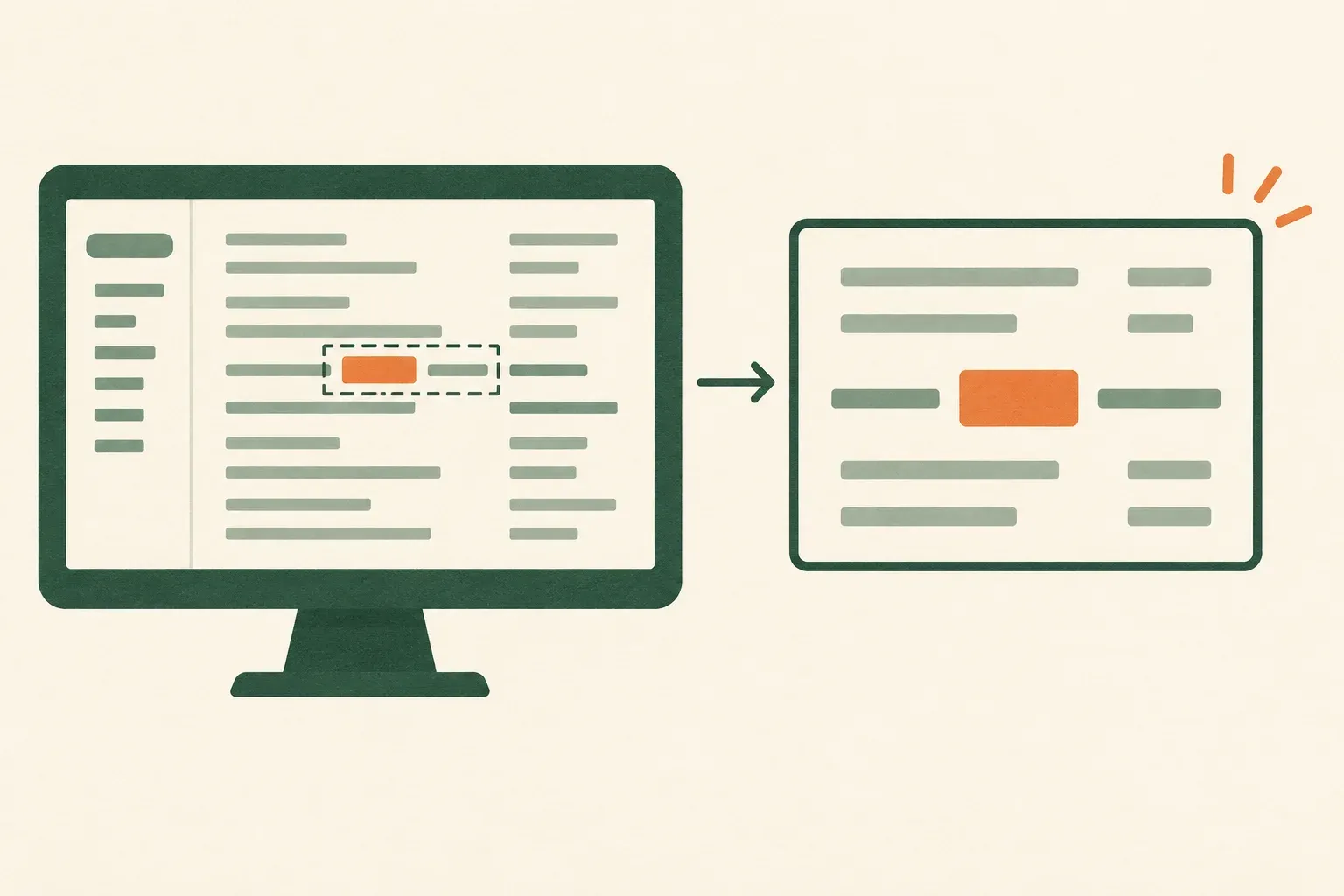
Cropping and upscaling are different operations. A 1920-pixel-wide crop from a 3840-pixel-wide source can fill a 1920-pixel-wide output at a 1:1 horizontal pixel ratio. A 960-pixel-wide crop filling that same output needs a 2× enlargement. The latter makes the feature bigger, but does not restore missing source detail. These examples assume matching shape and no additional borders or resizing.
If you already recorded text that is too small, try a restrained crop and inspect the result. If the source itself cannot resolve the letters, rerecord that short section with a larger interface. Do not promise that a higher export preset or a sharpening effect will reconstruct an unreadable command accurately.
Run a short, reversible comparison
Before the full recording, create a short sample containing the hardest part of the task: the smallest label, a menu opening, a brief scroll and the final result. Use harmless example data. Keep this original capture so every later comparison starts from the same material.
- Inspect the original. Note its pixel dimensions. Pause on the smallest required text and also watch the moving segment. If the original is already unreadable, fix the capture or framing first.
- Export one candidate. Use the intended delivery size without changing several settings at once. Give the file a name that identifies the output dimensions so you do not compare the wrong versions.
- Open the saved file. View it outside the editor at the intended viewing size. An editing preview is not proof of the exported file’s quality.
- Test the destination. Upload the sample where viewers will watch, allow the required quality version to become available, and check the actual embed as well as full screen.
- Change one cause. If necessary, enlarge the interface, adjust the framing or revise the export. Repeat the same sample and compare the same label.
A useful pass condition is concrete: another person can read the setting name, identify the selected value and follow the action at the normal playback size. Asking them to guess the word from context is not a pass. This is an editorial checking procedure, not a claim that we benchmarked a particular recorder.
Where Rescreen helps with the comparison
Rescreen’s recording and export workflow connects browser capture with an edited video and downloadable output. For a software walkthrough, the useful comparison is between the original source and the framed edit: does the edit bring the action closer while keeping the labels and result understandable?
If you already have access, record the short sample above, review the automatic framing, and compare the original with an edited download at your intended delivery size. Rescreen’s implemented download options include 1080p, 1440p and 2160p outputs; an output above the source height is an upscale. Check the actual captured dimensions before treating a 2160p download as newly captured 4K detail.
The benefit is a repeatable review of framing and delivery size using the same take. It does not remove the need to enlarge tiny source text or check the final player. Browser and operating-system capture behavior can limit the source resolution. You can create a Rescreen account to try these steps, and the general comparison works with an existing recorder and editor too.
Separate resolution from compression and hosted playback
Two files with identical dimensions can look different because their compression settings differ. Resolution is the number of pixels in each frame; bitrate is the amount of encoded data used over time. Increasing the dimensions while squeezing the file into the same small data budget is not a reliable route to cleaner text.
For a YouTube destination, consult its official upload encoding recommendations. YouTube recommends keeping the recorded frame rate. Its SDR guidance lists 8 Mbps video for 1080p at 24, 25 or 30 fps and 12 Mbps at 48, 50 or 60 fps. Those are destination-specific upload recommendations, not a guarantee of readability or universal settings for every recorder.
Use the video file size calculator to estimate the storage or transfer consequence of a chosen bitrate and duration. The estimate cannot tell you whether your small labels will survive compression. Compare a saved sample before deciding the smaller file is good enough; the video compressor lets you switch between the original and the compressed copy at the same moment.
Editing preview quality can also mislead. TechSmith’s blurry-video guidance distinguishes lower-resolution proxy previews from full-resolution exports, and recommends checking resizing between recording, editing and production. It also notes that YouTube’s HD version may not be available immediately after upload. Check the local export and the selected hosted quality before rerecording.
Find the first stage where quality was lost
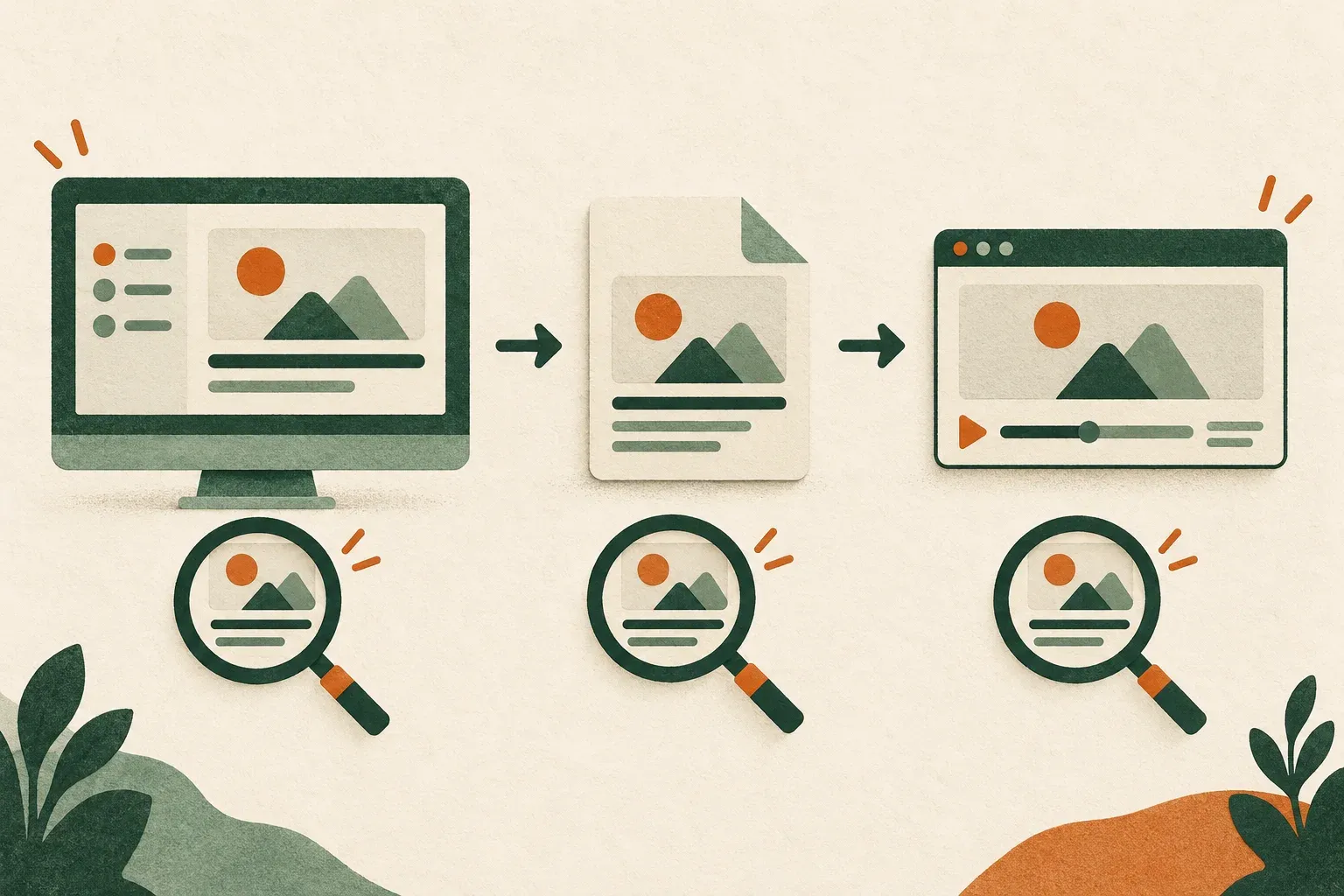
If every version looks soft, begin with the original capture and the size of the interface. If the original is clear and the export is not, inspect the crop, canvas dimensions, framing and export settings. If the local export is clear but the hosted version is not, inspect the selected playback quality and whether the destination has finished processing the relevant version.
Also separate tiny text from blurred text. Letters can be sharply encoded yet too small to read in an embed. That requires a framing or interface-size change, not merely more bitrate. Conversely, readable paused labels with smeared movement suggest a different problem from a label that is never readable in any frame.
| What you observe | Next check | Smallest useful change |
|---|---|---|
| The source text is unreadable even when paused. | Actual capture dimensions and app text size. | Enlarge the interface and rerecord the same short action. |
| The source is clear; the exported label is soft. | Crop size, output size and any repeated resizing. | Remove an unnecessary enlargement and compare another short export. |
| The export is clear full screen but too small in the embed. | How much of the frame the useful app area occupies. | Reduce empty framing or create a closer view with enough context. |
| Only the editor preview is soft. | Whether the editor uses reduced-quality preview or proxy media. | Inspect a saved export before changing the source. |
| The local export is clear; the hosted version is soft. | Available quality versions and the player’s selected quality. | Wait for the intended version if still processing, then compare it. |
| The label is readable paused but hard to follow during scrolling. | Scroll speed and the moment when the viewer is expected to read. | Pause on the important state; test motion settings only if still needed. |
Check decorative framing during this pass. Even with a 1920 × 1080 export, a screen inset surrounded by a wide background does not get all 1920 pixels of width. Compare the useful app area, not only the outer file dimensions. If a background helps orientation, keep it modest enough that the important labels still pass the viewing test.
Download the blank resolution comparison log (CSV) to record source dimensions, export dimensions, viewing size, the label checked and the first failing stage. Add one row per candidate, keeping the source sample constant where possible. It is a worksheet, not a set of test results or recommended settings.
Before recording the full take
- Identify the smallest label or value that the viewer must read.
- Confirm the saved source dimensions and the intended delivery shape.
- Check a focused frame without losing the menu, dialog or result.
- Compare the original, local export and hosted playback using the same short sample.
- Keep the original and record the successful settings before making the full video.
Choose the settings that make the task understandable at the real viewing size. If a 1080p sample passes, you have a useful starting point. If it fails, the comparison tells you whether to change capture, framing, export or playback before you spend time recording the whole lesson.