7 Descript Alternatives for Video, Podcasts and Screen Recording
Published by Rescreen, which makes one of the products discussed. How we source and update these guides.
The right Descript alternative depends on the job you need to replace. Riverside addresses remote conversations and transcript-based editing. Adobe Premiere combines transcript-led rough cuts with detailed video finishing. Audacity is a free option for audio work when you are comfortable editing waveforms. For screen walkthroughs, compare Rescreen, Screen Studio and Tella; OBS replaces the capture stage rather than the transcript editor.
Those distinctions matter more than treating all seven as interchangeable editors. Someone moving an interview series needs different recording and track controls from someone producing a short software demonstration. A tool that solves one stage may leave you needing another editor or hosting service. Keep the required final output in view when comparing the pricing and free-plan boundaries below. For Descript's own plan limits and a closer look at whether its workflow fits, read Is Descript worth it? This guide concentrates on choosing a replacement for a specific task.
Choose the job before the editor
If most of your work is dialogue editing with multiple speakers, compare a conversation editor such as Riverside before moving to a screen-only recorder. Keep Descript in the comparison when its transcript workflow already handles that task well. If the task is showing one feature in a web app, recording and framing may matter more than a large editing toolset. If you need elaborate source mixing, evaluate capture control separately from your editor.
Rescreen publishes this guide. The alternatives below are compared from the linked vendor documentation, checked on 6 October 2026; they have not been ranked by an export benchmark.
Write down the requirement that is making you switch
“I want a simpler editor” is a useful starting point, but it is too broad to test. Name the step that causes trouble: finding a sentence, correcting an automatic cut, fitting a screen to a vertical frame, mixing application audio or sending a version for review. Then write what a successful replacement would let you do in that step. Keep requirements that already work on the list too.
Separate capture from editing. If you already have a reliable recording, importing that file into another editor may be enough. If the problem is a missing audio source, changing the transcript editor will not fix it. Descript’s documentation distinguishes desktop system audio from browser-tab audio; that distinction is more useful than treating the product as desktop-only.
Also distinguish an occasional annoyance from a recurring cost. A single difficult project may need a different approach without justifying migration of the whole library. Before switching a team, test one new project and one revision to an existing project. The latter reveals whether source files, captions and reviewer feedback can move through the new workflow without being rebuilt.
Seven Descript alternatives compared
The prices below are USD documentation snapshots checked 6 October 2026. Annual commitments are labeled. “Transcript editing” here means cutting media through the words, not simply generating captions.
| Tool and best-fit job | Editing / capture distinction | Price and free boundary | Main tradeoff |
|---|---|---|---|
| Riverside: interviews and podcasts | Conversation recording and text-based media editing | Free: 720p with watermark and 2 one-off multitrack hours; Pro displayed at $288/year | Separate-track allowances and delivery quality matter independently of editing access |
| Adobe Premiere: video finishing | Transcript-led sequence edits plus timeline, effects and sound controls | $22.99/month on the annual, billed-monthly individual plan; 7-day trial | An annual subscription commitment and a wider editing workspace |
| Audacity: audio-only editing | Record and edit audio waveforms; not a screen-video editor | Free desktop editor for Windows, Mac and Linux | Does not preserve Descript's transcript-first video workflow |
| Rescreen: screen walkthroughs | Automatic cuts, framing and transcript corrections | Free tier; $99 lifetime option | Browser capture and the selected audio source define what you can record |
| Screen Studio: Mac demos | Automatic framing, transcript cuts and screen capture | $9/month annually ($108/year) or $29 monthly | Mac recording/editor workflow |
| Tella: presenter-led lessons | Screen/presenter layouts, transcript and timeline editing | Pro $13/user/month annually ($156/year) | Branding and administrative needs can determine the required tier |
| OBS Studio: local source control | Capture scenes and mix inputs; use another editor for transcript cuts | Free, open source; no hosted library bundled | Editing and delivery are separate stages |
A feature overlap does not mean these tools replace every Descript use case. Recording a local file in OBS does not supply a transcript editor. Automatic zoom in a demo app does not prove suitability for a multi-speaker podcast. Keep the required output visible while comparing features.
For Windows and Mac options, see the Screen Studio alternatives guide. For hosted messages and sales workflows, use the Loom alternatives table. Keeping those distinctions explicit is more useful than declaring one editor best for everybody.
Riverside: replace the conversation recording and editing workflow
Choose Riverside when the input is an interview or podcast and you want recording and speech-led editing in one service. Its editor documentation describes edits made through a transcript. That is a closer functional match to a spoken-media editor than simply adding an automatic zoom to a screen recording. The free plan's watermark and 720p output make it a trial route rather than an equivalent substitute for a paid delivery requirement.
Keep track downloads, the final mixed export and editing access separate in your budget. An interview producer may need each speaker's original track for later repair even if the first delivery is a single video. Verify the exact allowance shown for the selected plan before moving a recurring show; the public pricing page contains multiple plan comparisons, so this guide does not turn them into one assumed universal monthly quota.
Adobe Premiere: transcript cuts with a full video-finishing workflow
Choose Premiere when a transcript is useful for the rough cut but the final video also needs detailed picture, sound or effects work. Adobe's Text-Based Editing guide explains how deleting words removes corresponding sequence material. You can continue finishing that sequence in the timeline rather than move the rough cut to a separate editor.
The individual offer is $22.99 a month with an annual commitment, billed monthly, and a seven-day trial. That is $275.88 over twelve months before tax; it is not a cancel-any-time monthly price. This broader toolset makes sense when the finishing controls are part of the recurring job. For a simple raw screen reply, its extra workspace may solve a problem you do not have.
Audacity: a free route for audio-only podcasts
Choose Audacity when the deliverable is audio and you are comfortable editing clips and waveforms. The basic editing manual covers splitting, deleting and moving recorded sound. It is useful for removing a false start, arranging a voice recording or balancing sections without paying for a video-first subscription. The license FAQ permits personal, educational and commercial use.
This recommendation is for the core audio workflow. It does not promise that every optional plugin is free or that a waveform editor reproduces Descript's text-based video edits. If your podcast includes a synchronized screen demonstration, retain a video editor for that stage. A free audio tool is a good fit when the missing requirement is affordable audio editing, and a poor fit when the required deliverable is an automatically framed screen video.
Rescreen: when the main output is a screen explanation
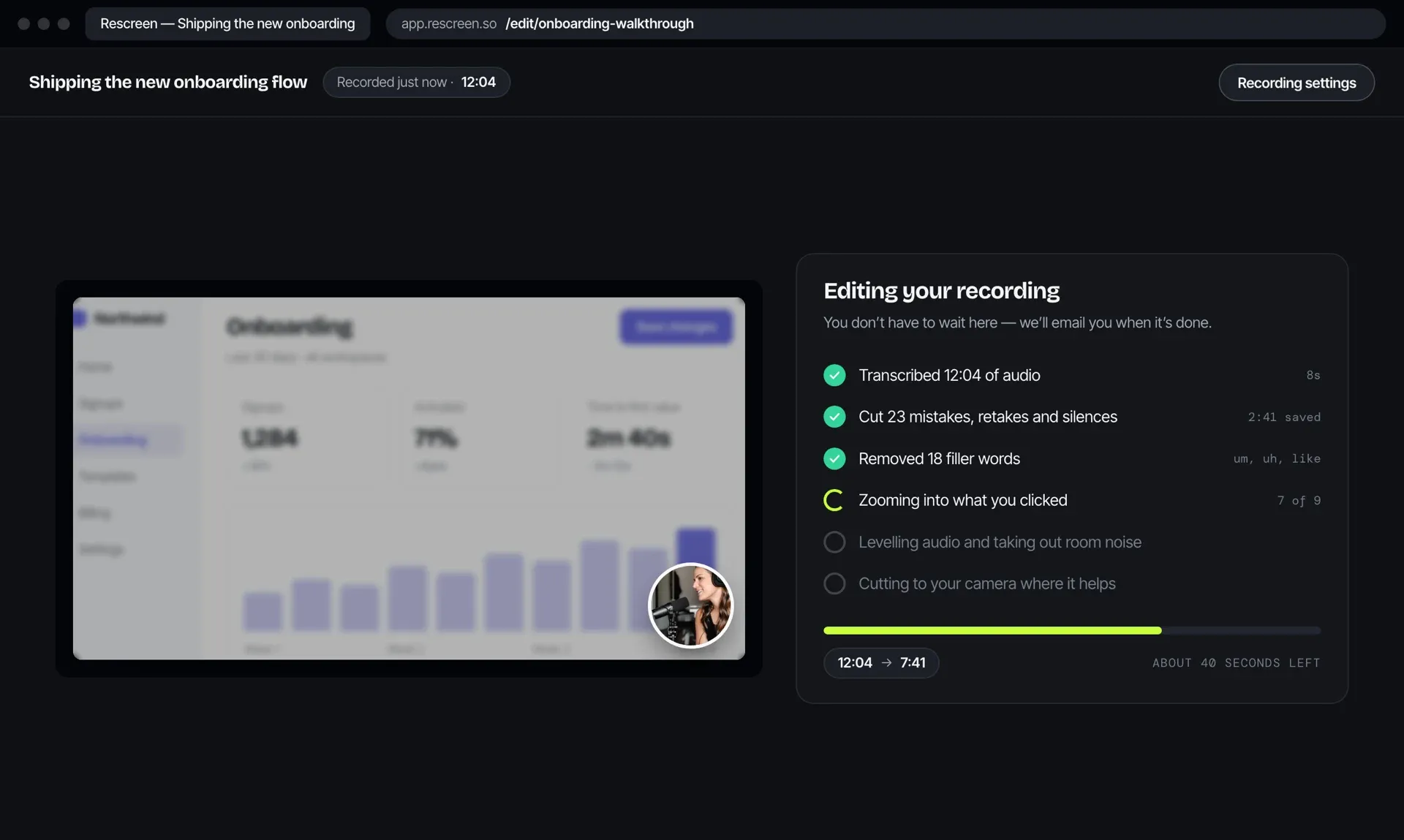
Rescreen focuses on recording a walkthrough, preparing an automatic first edit and correcting it through the transcript. Use a sample with a repeated explanation and an important click during speech. Check whether the cleaned-up version preserves the action, then inspect the framing at the intended player size. This is a narrower evaluation than asking it to replace every function of a general spoken-media editor.
A browser workflow can be convenient across devices, but it still depends on the browser, permissions and audio source. If the lesson includes a separate desktop app, verify that capture requirement first. Keep the original take until the final lesson is checked so you can restore a sentence or action that should not have been removed.
Screen Studio: when Mac demo presentation is the priority
For a Mac-based workflow, evaluate Screen Studio’s framing and editing controls on a small interface with several menus. Its current product page includes transcript editing and filler-word cleanup, so those capabilities overlap with part of the Descript decision. Compare how easily you can produce the required explanation, not merely whether both products have a transcript.
If another person needs to edit the source project on Windows, a Mac application creates a different constraint from sending them an exported video to watch. Ask which kind of handoff your team needs. An editor can fit a solo creator perfectly and still be awkward for a mixed-device production team.
Tella: when the explanation needs screen and presenter layouts
Tella belongs in the shortlist when the video should move between a speaker, a screen and supporting material. Use its plan comparison to identify the creation and sharing controls your workflow needs. Try a transition from a face-to-camera introduction into a detailed screen step. The important question is whether the layout makes the lesson easier to follow at the final viewing size.
Keep branding and review requirements visible during the trial. A default presentation can look good while failing a required player or domain constraint. Test the recipient’s experience with the intended access settings rather than stopping when the editor shows a satisfactory preview.
OBS: when the capture itself needs more control
OBS is an alternative capture stage, not a direct replacement for Descript’s transcript editor. It is relevant when you need to compose sources or control audio routing before any editing begins. Plan where the file goes next, how speech will be cleaned up and where the final result will be hosted. Include those steps when comparing the amount of work.
A hybrid workflow can be sensible: use the recorder that handles the sources, then edit in a tool that handles the narrative. That is especially useful when the source configuration is unusual but the finished video is a straightforward lesson. Changing the entire production setup is unnecessary if only one stage needs improvement.
Two worked decisions
Example one: a three-minute release walkthrough. This hypothetical creator records a browser feature every week and mostly removes repeated explanations. They need readable framing and a video that colleagues can open easily. Their trial should compare a walkthrough-focused editor with their current Descript process using the same script. Count correction work and verify that the changed setting is visible after cleanup. The result may favor a specialized workflow, but that conclusion should follow the sample, not precede it.
Example two: a recorded interview with a software demonstration. Here, several speakers discuss a feature, then one shares a desktop app with its own sound. Riverside is the closer shortlist entry for conversation recording and transcript edits; Premiere belongs in the finishing comparison when the interview also needs detailed visual work. Audacity is relevant if only the audio episode will be published. The primary challenge is preserving the conversation and the demonstration together. A lightweight demo editor may be insufficient even if it handles the screen section well. Test the source capture, speaker organization and later revisions before switching away from a dialogue-centered editor. If only the capture is failing, try a different recorder without replacing the editing workflow.
Neither example is a customer case study or a measured product result. They illustrate how the required output changes the shortlist. Use your own recurring project as the deciding case, and retain a copy of the original media and the final export outside the test project.
Use one trial project to decide
Prepare a two-minute recording containing a repeated sentence, a long pause, and an on-screen action during speech. Use the same source in tools that allow imports; otherwise record the same script and disclose that the takes differ.
- Does removing the repeated sentence preserve the important action?
- Can you correct names and captions without rebuilding the edit?
- Does the final video remain readable at the size your viewers use?
- Which export, hosting, or collaboration requirement moves you to a paid tier?
Choose on the amount of correction your actual project requires. If you are building a tutorial from scratch, our worked example helps you structure the recording before evaluating an editor.
Before committing, check the cost of the required plan, the number of paid creators and what happens to shared videos if the subscription changes. Keep the notes with a dated export and record the version tested. If no option improves the specific step that prompted the search, keeping the current workflow and adjusting the script or capture setup may be the more useful outcome.