How to stop screen recording on a Mac
Click the stop button in the menu bar at the top of the screen, or press Command + Control + Esc. The recording is saved to your desktop as a .mov file unless you chose another folder under Options.

Step by step
These ways of stopping work for a recording started from the Screenshot toolbar (Command + Shift + 5) or from QuickTime Player, on macOS Mojave 10.14 and every version since. Pick whichever is in reach.
Click the stop button in the menu bar
While a recording runs, a small stop button, a circle with a square in it, sits near the right end of the menu bar. Click it once. Nothing asks you to confirm: the recording ends at that moment.
Checked 24 October 2026 against support.apple.com
Or press Command + Control + Esc
Hold Command and Control, then press Esc. This is the quickest way when the menu bar is hidden, for example behind a full-screen app or the notch on a MacBook. It stops a QuickTime recording the same way.
Shortcut: Command + Control + Escape
Checked 24 October 2026 against support.apple.com
On a MacBook Pro with a Touch Bar, tap stop there
MacBook Pro models from 2016 to 2020 with a Touch Bar can end the recording from the Touch Bar as well as the menu bar. Apple’s older QuickTime Player guide names this route; the current guide leaves it out, since no Mac sold today has a Touch Bar.
Checked 24 October 2026 against support.apple.com
In QuickTime Player, use its own stop button
If you began with File › New Screen Recording in QuickTime Player, stop with the same menu bar button. If Save to is set to QuickTime Player, the recording then opens in a QuickTime window and is not on disk yet: choose File › Save to keep it.
Checked 24 October 2026 against support.apple.com
Leave the thumbnail, or click it to trim
A preview slides into the bottom-right corner when you stop. Ignore it and the file is written a few seconds later. Click it to trim the ends or share before it saves; drag it into an app to drop the file there.
Checked 24 October 2026 against support.apple.com
Stop macOS asking to allow screen recording again
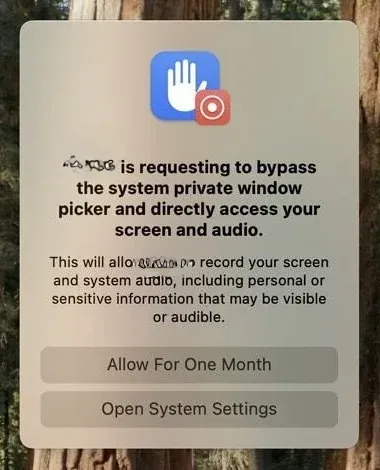
The other thing people mean by this search is a pop-up that keeps returning. On macOS Sequoia 15 and later it reads: “[App] is requesting to bypass the system private window picker and directly access your screen and audio.” On macOS Sequoia 15.8 the two buttons are Allow and Open System Settings.
It is not a sign of anything wrong. macOS shows it for apps that capture the screen themselves, such as meeting, screenshot and remote-control apps, rather than through the window picker macOS draws for them. Apple has not published how often it comes back; since the release of macOS Sequoia 15.0 it has been reported as roughly once a month for each app, and no longer after every restart, which earlier betas did.
There is no switch for it on a personal Mac. What you can do:
- Click Allow if you still use the app. It goes quiet until the next reminder.
- Click Open System Settings and turn the app off if you no longer want it to see your screen.
- Quit apps that capture in the background, such as screenshot or window tools you rarely use: an app that is not running cannot ask.
- On a work Mac, your IT team can turn the reminder off. Apple gave device management a setting for it in macOS Sequoia 15.1; it cannot be set by hand.
Stop an app from recording your screen
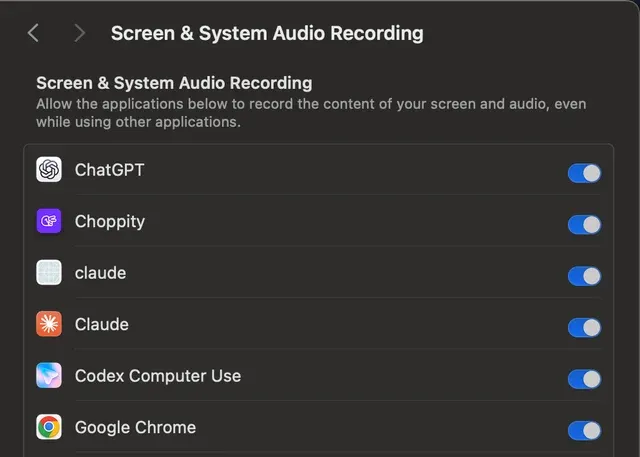
Every app other than Apple’s own toolbar needs your permission to see the screen. To take it away, open Apple menu › System Settings › Privacy & Security, scroll to Screen & System Audio Recording and turn the app’s switch off. macOS may ask you to quit the app so the change takes effect. On macOS Sonoma 14 and earlier the page is called Screen Recording.
Turning an app off does not uninstall it or delete anything it already recorded. If you later need it, for a video call where you share your screen for instance, switch it back on and reopen the app.
How to tell what is recording your screen right now
Look at the right end of the menu bar, beside Control Center. A coloured dot there means something is being captured: Apple’s Control Center guide lists orange for the microphone, green for a camera and purple for system audio. On our Mac running macOS Sequoia 15.8, a screen recording with no sound at all showed the purple dot too, and it stayed visible at the top-right corner when a full-screen app hid the rest of the menu bar.
To see which app it is, open Control Center: a field at the top names the apps using your microphone, camera or system audio, and clicking it opens Privacy & Security. For anything you do not recognise, quit it and switch off its screen recording permission as shown above.
Where do screen recordings go on a Mac
Straight to the desktop, unless you changed it. Each file is named Screen Recording, then the date and time, then .mov. To find one fast, press Command + Space and type “Screen Recording”; Spotlight lists them newest first.
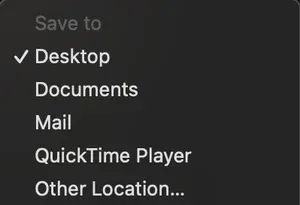
To pick another place, press Command + Shift + 5, click Options and choose under Save to: Desktop, Documents, Mail, QuickTime Player or Other Location for a folder of your own. The tick shows the one in use, and the toolbar remembers it next time.
If iCloud Drive keeps your Desktop and Documents, the recording is there too, in iCloud Drive › Desktop, and may take a while to appear on your other devices. Large .mov files are slow to upload anywhere; the video compressor shrinks one first, and the MOV to MP4 converter makes a copy that Windows and most websites accept.
Stopping a recording in Rescreen
Rescreen records from a browser tab on a Mac, in Chrome, Edge or Safari, so the stop control is on the recording page itself: press Stop and the take is finished and uploading. There is no shortcut to remember and no file to look for on the desktop afterwards; you get a link.
The browser also draws its own Stop sharing bar. In Chrome or Edge, using it pauses the take instead of ending it, and the page offers to pick your screen again or finish, so a stray click does not lose the recording. In Safari, ending the share ends the take.
The browser still needs the Screen & System Audio Recording permission the first time, like any app. For what each browser can capture with sound, see the Chrome guide; for the whole Mac toolbar, how to screen record on a Mac.
macOS Screenshot toolbar or Rescreen
| macOS Screenshot toolbar | Rescreen | |
|---|---|---|
| Audio | Microphone. System audio on macOS 27 or later. | Your microphone, plus the sound of a browser tab, or of the whole computer where your browser offers it. |
| Webcam | None built in. | Your camera in a round bubble over the screen, or the camera on its own. |
| Editing | Trim the ends in the thumbnail or QuickTime Player. | Done when you stop recording: cuts mistakes, retakes, filler words and silences, zooms into what you do, reduces noise and levels your voice, speeds up still screens. |
| Length | Until you stop it or the disk fills. | Up to five hours per recording, on the free plan. |
| Sharing | A .mov file in the Save to folder. | A link anyone can watch without an account. |
| File format | QuickTime movie (.mov). | MP4 download in 4K, 2K or HD on Pro. |
| Cost | Free, part of macOS. | Free. Pro is $10 / month billed $120 yearly, or $20 monthly. |
What macOS Screenshot toolbar can't do
- The Screenshot toolbar has no pause: stop, then start a new recording.
- Stopping always saves. There is no “discard” at the stop button; delete the file, or drag the thumbnail to the Bin.
- The stop button lives in the menu bar, which a full-screen app or the notch can hide; the shortcut always works.
- The repeat permission prompt cannot be switched off on a Mac you manage yourself.
If it doesn't work
There is no stop button in the menu bar
A full-screen app hides the menu bar, and on a MacBook with a notch a busy menu bar pushes icons out of sight. Press Command + Control + Esc, or move the pointer to the top edge to bring the menu bar back.
My Mac keeps asking me to allow screen recording
That is the macOS Sequoia reminder for apps that capture the screen directly. Click Allow to keep using the app, or Open System Settings and switch it off. On a work Mac, ask IT to turn the reminder off.
The pop-up appears with no recording running
An app you are not looking at, often a screenshot, clipboard or window tool, asked to see the screen in the background. The prompt names it. Quit it, or remove its permission if you do not need it.
I stopped it but cannot find the recording
Check Options › Save to in the toolbar for the folder in use. If it is QuickTime Player, the recording is in an open QuickTime window and needs File › Save. Spotlight finds the rest: search for Screen Recording.
The shortcut does nothing
Another app may own Command + Control + Esc. Click the stop button instead, then look under System Settings › Keyboard › Keyboard Shortcuts › Screenshots, or in the other app’s settings, for the clash.
Questions people ask
How do I stop a screen recording on my Mac without the stop button?
Press Command + Control + Esc. It ends a Screenshot toolbar or QuickTime recording and saves the file, wherever the menu bar is.
How do I turn off the screen recording pop-up on my MacBook Air?
You cannot switch the reminder off on a personal Mac. Click Allow for apps you use, and remove the permission from apps you do not, in Privacy & Security › Screen & System Audio Recording.
Why does my MacBook keep asking if I want to record my screen?
Since macOS Sequoia 15, apps that see the screen without Apple’s own picker must be allowed again from time to time. The prompt names the app that asked.
How do I stop apps from recording my screen on a Mac?
Open System Settings › Privacy & Security › Screen & System Audio Recording and turn each app off. macOS may ask you to quit it first.
Where do screen recordings go on a Mac?
To the desktop by default, named Screen Recording with the date and time. Options › Save to in the Command + Shift + 5 toolbar changes the folder.